
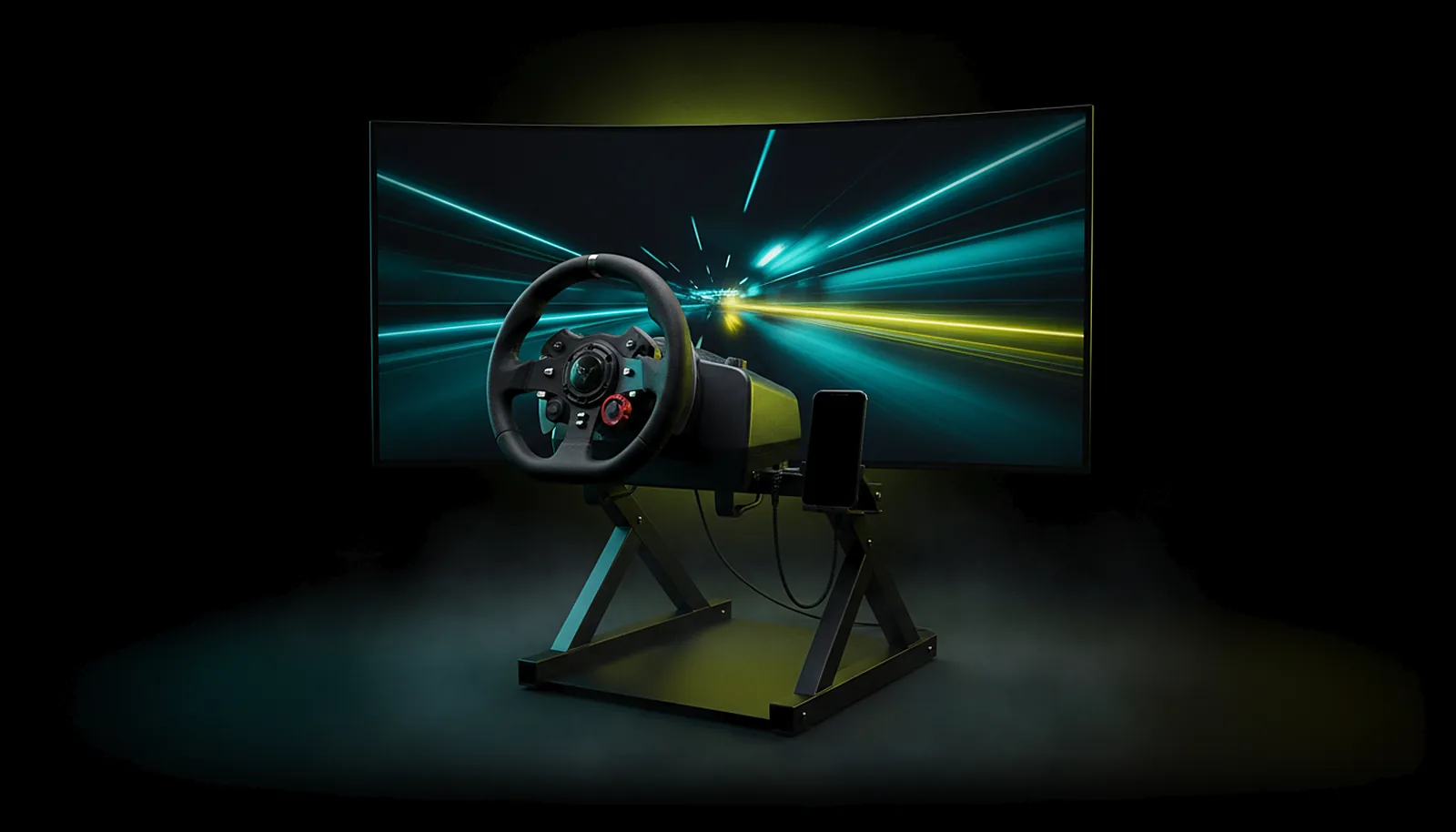
Can I use my racing wheel with force feedback from the living room?
Yes. Plug the wheel into an Android TV box or phone running ChimpDeck and it appears on the PC as the real USB device: official driver, every axis and pedal, force feedback working, while the game streams to the TV. Moonlight, Steam Link and Parsec only emulate a pad.
Updated 2026-09-14
The problem
The rig is in the living room because that is where the big TV is, but the PC that runs the sim is upstairs. Every remote-play app you try turns your wheel into a generic Xbox controller: the steering becomes a stick, the pedals become triggers, and the force feedback simply does not exist.
Sim racing without force feedback is not sim racing. You cannot feel the kerb, the loss of grip or the weight of the car, and the games that expect a specific wheel profile do not even list it.
So you either move the PC, buy a second one, or give up on the living room. None of those is a good answer for a wheel you already own.
Why it happens
Force feedback is a two-way conversation between the game and the wheel’s own driver: the game sends forces, the driver turns them into motor commands. Streaming tools that emulate a controller on the PC break that conversation — the game talks to a fake pad that has no motors and no wheel profile, so there is nothing to send back.
The only way to keep it is to give the PC the actual USB device. That is what a USB-over-IP bridge does: the wheel is plugged into the Android box, but Windows enumerates it as if it were plugged into the PC, official driver included.
How to solve it with ChimpDeck
- 01
Plug the wheel into the Android box
USB into the Shield, Android TV box or phone that runs ChimpDeck. USB OTG is the only requirement; no root, no ADB. The wheel needs its own power supply as usual, and on most phones a powered USB OTG hub as well (a TV box with a full-size USB port usually does not); a charge-only cable shows nothing at all.
- 02
Let ChimpDeck for Windows enumerate it
The USB bridge driver, signed by Microsoft and installed with the host, makes Windows see the exact device you plugged in. Its official driver, configurator and profiles work as if it were local.
- 03
Check it in the test bench
On the PC, ChimpDeck’s test bench shows raw axes and buttons, so you can confirm steering, pedals and shifters before the game starts. On the Android side the drift and dead-zone tools work on the wheel’s axes too.
- 04
Start the stream to the TV
Pair the TV with the PC without a PIN and pick the game. The PC renders at the TV’s exact resolution on a virtual display, so no black bars on the living-room screen.
- 05
Race
Forces travel back over the same link to the wheel’s own driver. That loop suffers on bad Wi-Fi, and the app shows it as numbers: the real link speed and the controller-to-PC latency, so a soft wheel points at the network, not the driver. If something is not linked, ChimpDeck says why in words — these are the usual causes.
What you get
Real force feedback
The game talks to the wheel’s official driver, so every force it sends reaches the motor.
Every axis, every pedal, every button
Steering, throttle, brake, clutch, shifters and wheel buttons arrive exactly as the driver defines them.
Your wheel profiles still work
The manufacturer’s configurator and per-game profiles apply, because Windows sees the same device.
No cable across the house
The wheel is plugged into the TV box; the PC can be anywhere on your network.
Compared with Moonlight, Steam Link and Parsec
Moonlight with Sunshine or Apollo, Steam Link and Parsec all handle a wheel the same way: the client reads it as a gamepad and the host presents a generic emulated controller to the game. Some sims can be forced to accept that as a stick, but force feedback is gone and wheel-specific features never arrive. ChimpDeck is the only one of the four that forwards the USB device itself, which is why the official driver and force feedback work. The limits: the wheel must be plugged in by USB (Bluetooth pads are emulated; their rumble, where the pad allows it, is about to launch), and ChimpDeck’s host needs an NVIDIA graphics card for the picture — the TV setup itself takes a few minutes.
See the full comparison table
 [ GET STARTED ]
Get ChimpDeck —free on Android and Windows.
Install both, pair once, play. Every feature is in the free tier.
ANDROID 8+ · WINDOWS 10/11 · NVIDIA GPU · FREE TO PLAY
Related questions
 Controllers
My controller doesn’t work on the NVIDIA Shield — what can I do?
Read the answer TV & living room
How do I play PC games on my TV from another room?
Read the answer Picture & quality
Why does Moonlight show black bars on my phone, and how do I get the exact resolution?
Read the answer Controllers
How do I test if my controller has stick drift?
Read the answer
More questions about this
01Does the wheel work without streaming the picture?
Yes. The USB gamepad server is a product on its own: you can sit at your monitor with the wheel plugged into a phone or box, and the PC still sees the real device.
02Do I need a specific wheel brand?
Anything Windows has a driver for. The PC sees the device itself, so the brand’s own driver, configurator and profiles are what the game uses.
03Does it add latency to the steering?
It depends on your network, the wheel and the PC. ChimpDeck measures the pad-to-PC trip with a synchronised clock and shows the figure with its margin of error; it also shows the distribution of intervals between controller reports over 60 seconds, so a stutter shows up as a number rather than a feeling.
04Does the wheel need a powered hub?
The wheel always needs its own power supply. On most phones you also need a powered USB OTG hub, because the phone cannot feed a wheel; a TV box with a full-size USB port usually drives it directly. A charge-only cable will not show the device at all.
05Can I also plug a gamepad at the same time?
Yes. Several USB devices can be plugged into the Android side at once; they are listed and forwarded with filters and nicknames.