How do I play PC games on my TV from another room?
Yes: put ChimpDeck on the Android TV (or NVIDIA Shield) and ChimpDeck for Windows on the PC. They pair over your home network without a PIN, the PC streams picture and sound at the TV’s exact resolution, and your controller reaches the PC as a real USB device.
Updated 2026-09-14
The problem
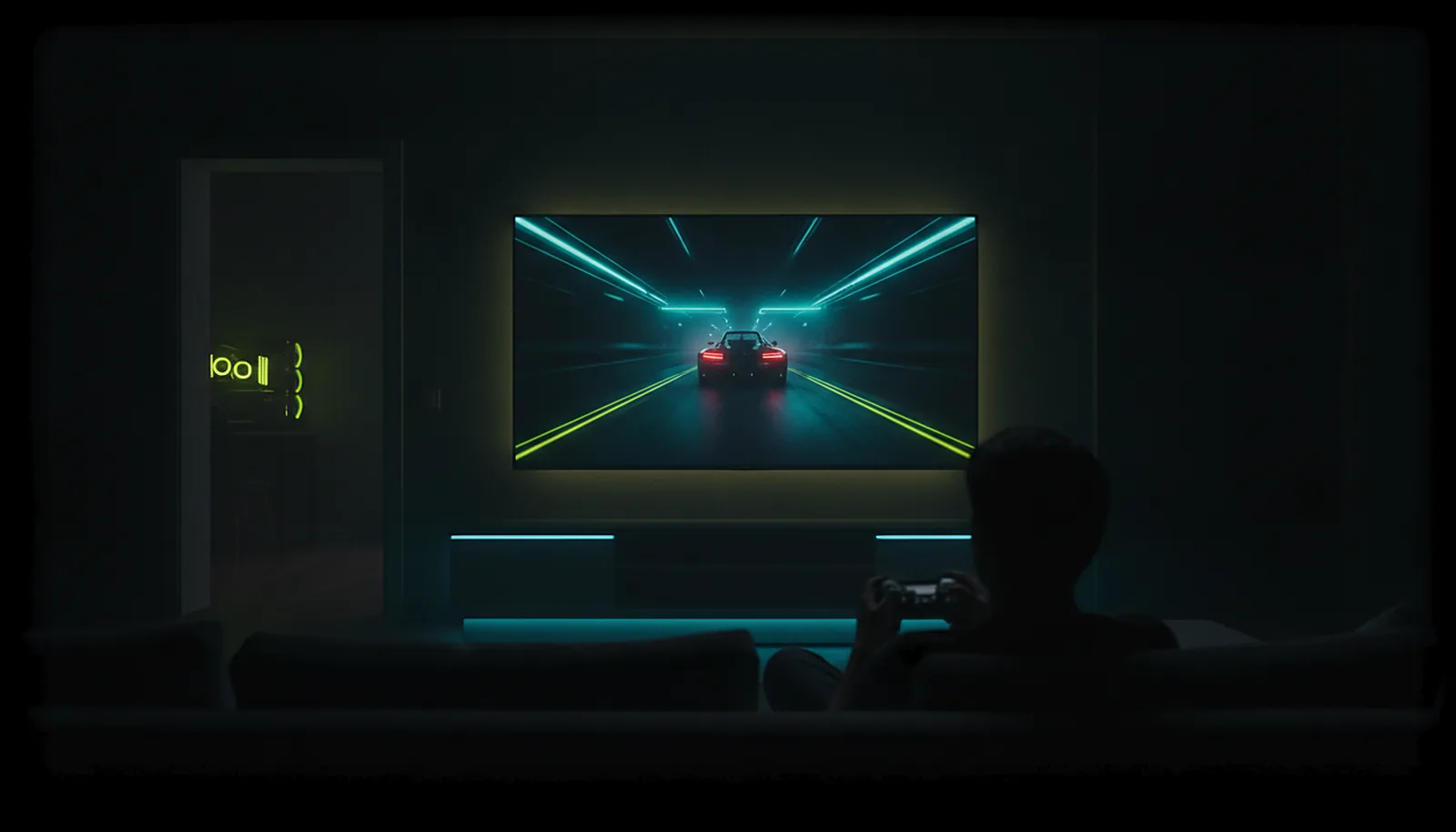
The gaming PC lives in the office, the big TV lives in the living room, and the sofa is where you actually want to play. Dragging the tower across the flat, running a twenty-metre HDMI cable or buying a second PC are all bad answers.
The streaming apps you have tried each come with a catch: a Sunshine host to set up from a web panel, a PIN to type every time you pair, a client that only wants Steam games, or a picture that stutters the moment someone else opens a video on the Wi-Fi.
And when it finally works, the controller is the letdown: the game sees a generic pad, rumble is gone, and your wheel or arcade stick is not even recognised.
Why it happens
Streaming a PC to a TV is three jobs at once: capture and encode the picture on the PC fast enough not to add lag, decode it on the TV box with its hardware decoder, and carry your inputs back the other way. Most tools do the first two well and improvise the third by emulating a controller on the PC.
The TV also needs a real 10-foot interface. A settings page designed for a mouse is useless from three metres away with a remote, which is why so many setups end with a phone in one hand as a remote control for the TV app.
How to solve it with ChimpDeck
- 01
Install ChimpDeck on the TV
From Google Play on the Android TV or Shield, or from the Play Store on your phone with «Install on another device». The whole app is driven with the remote or a game controller.
- 02
Install ChimpDeck for Windows on the PC
One installer brings the host, the USB bridge driver signed by Microsoft and the virtual display adapter. It installs per user and never asks for administrator rights again.
- 03
Pair without typing anything
Open the PC page on the TV while both are on the home network. The PC shows who is calling and a six-digit number; if the TV shows the same number, accept. No PIN, nothing to memorise.
- 04
Plug your controller into the TV box
USB into the Shield or box: Windows sees the real device, with its official driver and all four rumble motors. If the pad does not show up, here is what to check on the Shield.
- 05
Let the PC take the TV’s shape
ChimpDeck for Windows learns the TV’s resolution at pairing and serves it on a virtual display of exactly that size, so there are no black bars and your monitor comes back when you stop.
- 06
Pick a game and play
Add games with box art on the PC and they appear on the TV; the Desktop is always there. From the sofa everything is one press per option with the D-pad.
What you get
The TV’s exact resolution
3840×2160 or whatever your TV is, learned at pairing and served in the same session.
Your real controller
Wheel, HOTAS, arcade stick or pad: the actual USB device on the PC, force feedback included.
A true 10-foot interface
D-pad navigation, focus visible from three metres, one press per setting, no scrolling.
A session that survives Wi-Fi hiccups
If the picture stops, the host pauses for up to 10 minutes and the app reconnects by itself.
Compared with Moonlight, Steam Link and Parsec
Moonlight with a Sunshine host does stream to Android TV well, but you set the host up from a web panel, type a PIN on the PC and the game gets a generic emulated pad. Steam Link only really shines with Steam games, and Parsec is built for desktops first. ChimpDeck’s own host pairs with a matching number, forwards the actual USB controller, gives the TV its exact resolution and keeps the session alive through a network drop — at home or away from home without touching the router. If you already run Sunshine or Apollo, the ChimpDeck app works as a client for them too. The honest limit: ChimpDeck’s host needs an NVIDIA graphics card and runs on Windows only.
See the full comparison table
 [ GET STARTED ]
Get ChimpDeck —free on Android and Windows.
Install both, pair once, play. Every feature is in the free tier.
ANDROID 8+ · WINDOWS 10/11 · NVIDIA GPU · FREE TO PLAY
Related questions
 Controllers
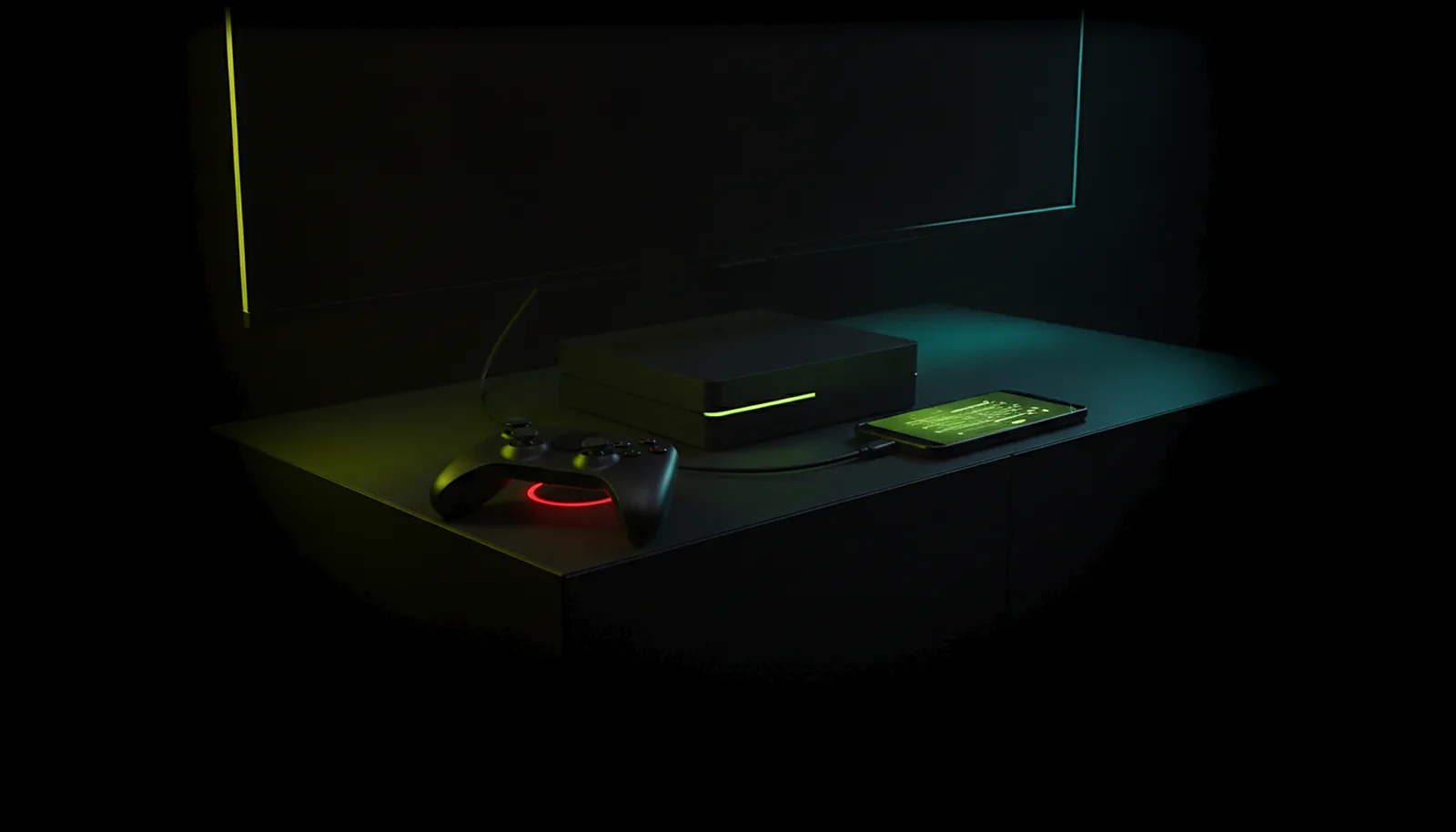
My controller doesn’t work on the NVIDIA Shield — what can I do?
Read the answer Picture & quality
Why does Moonlight show black bars on my phone, and how do I get the exact resolution?
Read the answer Away from home
How do I play my PC games away from home without port forwarding?
Read the answer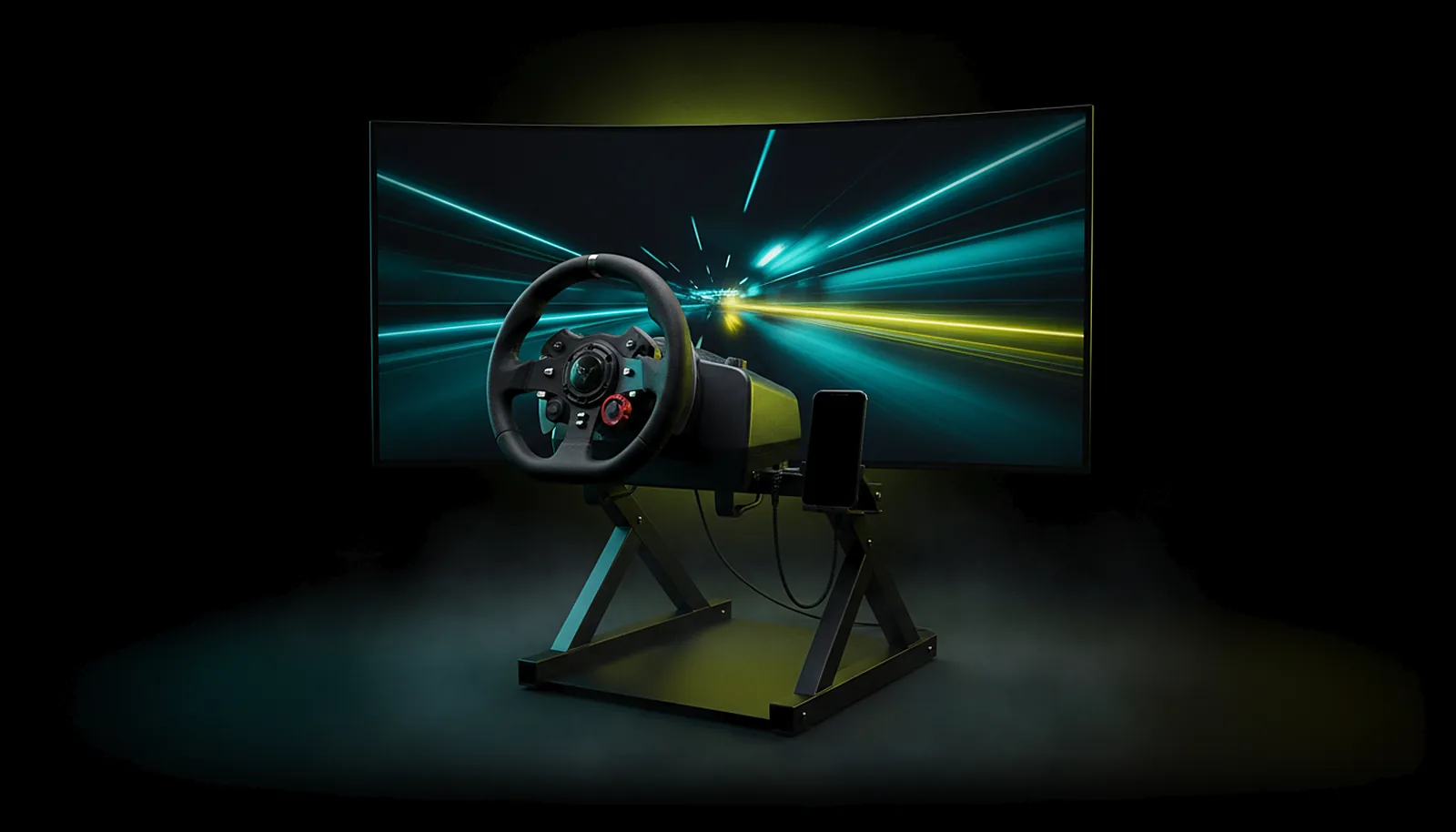 Controllers
Can I use my racing wheel with force feedback from the living room?
Read the answer
More questions about this
01Do I need an NVIDIA Shield, or does any Android TV work?
Any Android TV box with Android 8.0 or later and a hardware H.264 or HEVC decoder works; the Shield is simply a well-known example. USB OTG is only needed if you want to plug a controller into the box.
02Does the TV box need Wi-Fi?
No. An Ethernet-wired TV box works the same, and is usually the steadier choice for 4K.
03Can I control everything with the TV remote?
Yes. Every screen and every setting works with a D-pad, a game controller or a TV remote; a settings row moves to its next value with one press.
04Will my PC monitor go blank while I play on the TV?
In the default single-display mode the monitor is set aside during the session and your windows move to the streamed display. Everything comes back when you stop, with four independent ways to restore the monitor even after a crash.
05Does it cost anything?
ChimpDeck is free with the Play Cooldown: 2 hours of real play, then a 4-hour cooldown (the clock only runs while you use the controller). The Non Stop Pass (€4.99 + VAT for 30 days or €39.99 + VAT for life) switches it off and nothing else. Before you play, you can also check your controller for drift with the built-in tools.