
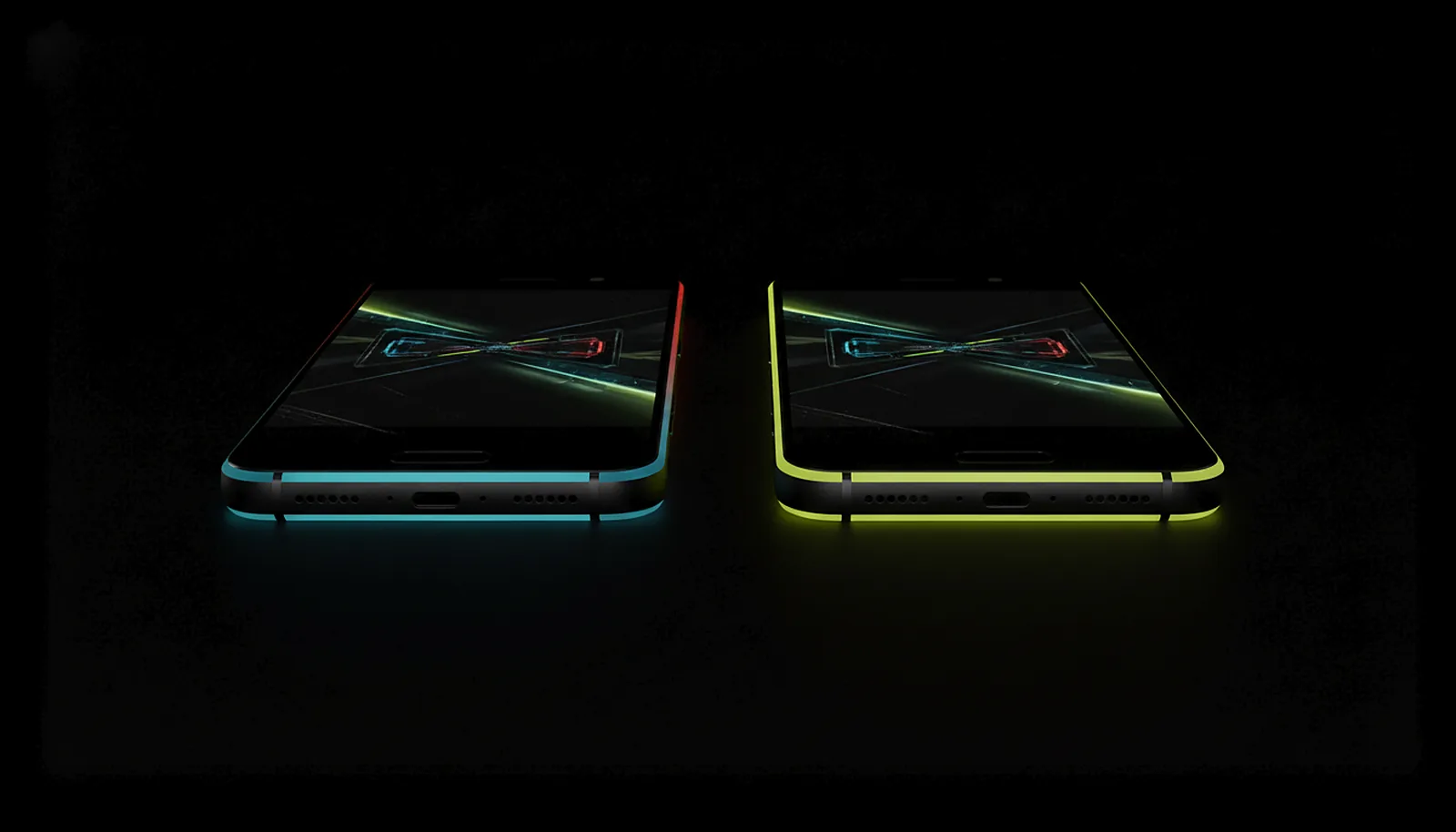
Why does Moonlight show black bars on my phone, and how do I get the exact resolution?
Because the PC renders its monitor’s shape (16:9) and your phone is 20:9, so the picture is letterboxed or stretched. ChimpDeck for Windows learns your device’s exact resolution at pairing and serves it on a virtual display of that size — no bars, no stretching, removed when you stop.
Updated 2026-09-14
The problem
You set up Moonlight, the stream works, and the game sits in the middle of your phone with a black band on each side. Switch to «fill» and the picture is cropped; switch to «stretch» and everything is squashed.
Your phone is 3216×1440 or 2412×1080 — sizes no PC monitor has. The resolution list on the client only offers 1080p, 1440p and 4K, all 16:9, and none of them is your screen.
The usual fix on the forums is to add a custom resolution to Windows by hand, or install a separate virtual display driver and juggle it before every session. It works until it doesn’t, and one day the PC boots with no picture on the real monitor.
Why it happens
A stream can only carry the shape the PC is rendering. If the desktop is 2560×1440 and the phone is 3216×1440, the ratio does not match, and the client has three bad choices: bars, cropping or distortion. The only real fix is to make the PC render at the phone’s exact size.
That needs a virtual display on the PC. Apollo creates one automatically; Sunshine leaves it to you. And a virtual display raises its own questions: does your monitor go dark, where does the mouse go, and does the extra display disappear afterwards or stay as a ghost in Windows’ settings?
How to solve it with ChimpDeck
- 01
Pair the phone with ChimpDeck for Windows
At pairing, the host learns the device’s native size — any size, not a fixed list — and prepares it before the first session. If a new size shows up at launch, it is added and the virtual display reloaded on the spot.
- 02
Pick «this device’s resolution» in the app
The resolution list starts with your device’s own size; each option is labelled with how it will arrive: monitor mode, exact via virtual display, or with bars. Choose the exact one.
- 03
Let the host choose the cheapest path
If the desktop already matches, it captures as is; if the real monitor supports the size, it just switches mode; only otherwise does it create the virtual display. It never virtualises unless that buys something.
- 04
Choose single or extended display
Single (the default) sets the PC monitor aside for the session, so there is one desktop to render, your windows stay where they are and the mouse never wanders onto an invisible desktop. Extended keeps the monitor on and adds the device’s display as the main one.
- 05
Play, then stop
When the session ends the display is removed from the system, not merely switched off — no ghost monitor left in Windows. It appears and disappears in well under half a second. The same applies on a tablet or on the living-room TV.
What you get
Your phone’s exact pixels
3216×1440, 2412×1080, 2800×1260 — learned at pairing, served the same session, full screen.
Your windows stay put
Single-display mode by default: one desktop, no mouse lost on a screen you cannot see.
The display is removed afterwards
Not switched off — removed. No ghost second monitor in Windows’ display settings.
Four ways to get your monitor back
Session cleanup, a watchdog that survives a killed app, a check at next start, and a Windows sign-in entry after a reboot mid-session.
Compared with Moonlight, Steam Link and Parsec
Moonlight with Sunshine can reach the exact resolution only if you set up a virtual display by hand; Apollo does create one automatically, which is its big strength. Steam Link and Parsec stream the monitor’s shape, so bars or cropping are the norm on a 20:9 phone. ChimpDeck matches Apollo on the automatic virtual display and adds the cleanup guarantees — removed after the session, four independent ways to restore the monitor — and the logic that avoids virtualising when the real monitor can already do the size. Exact resolution needs ChimpDeck for Windows (NVIDIA graphics card); with a Sunshine or Apollo host it depends on that host. It works the same away from home as on the sofa, and turns the phone into a proper handheld.
See the full comparison table
 [ GET STARTED ]
Get ChimpDeck —free on Android and Windows.
Install both, pair once, play. Every feature is in the free tier.
ANDROID 8+ · WINDOWS 10/11 · NVIDIA GPU · FREE TO PLAY
Related questions
 Phone & tablet
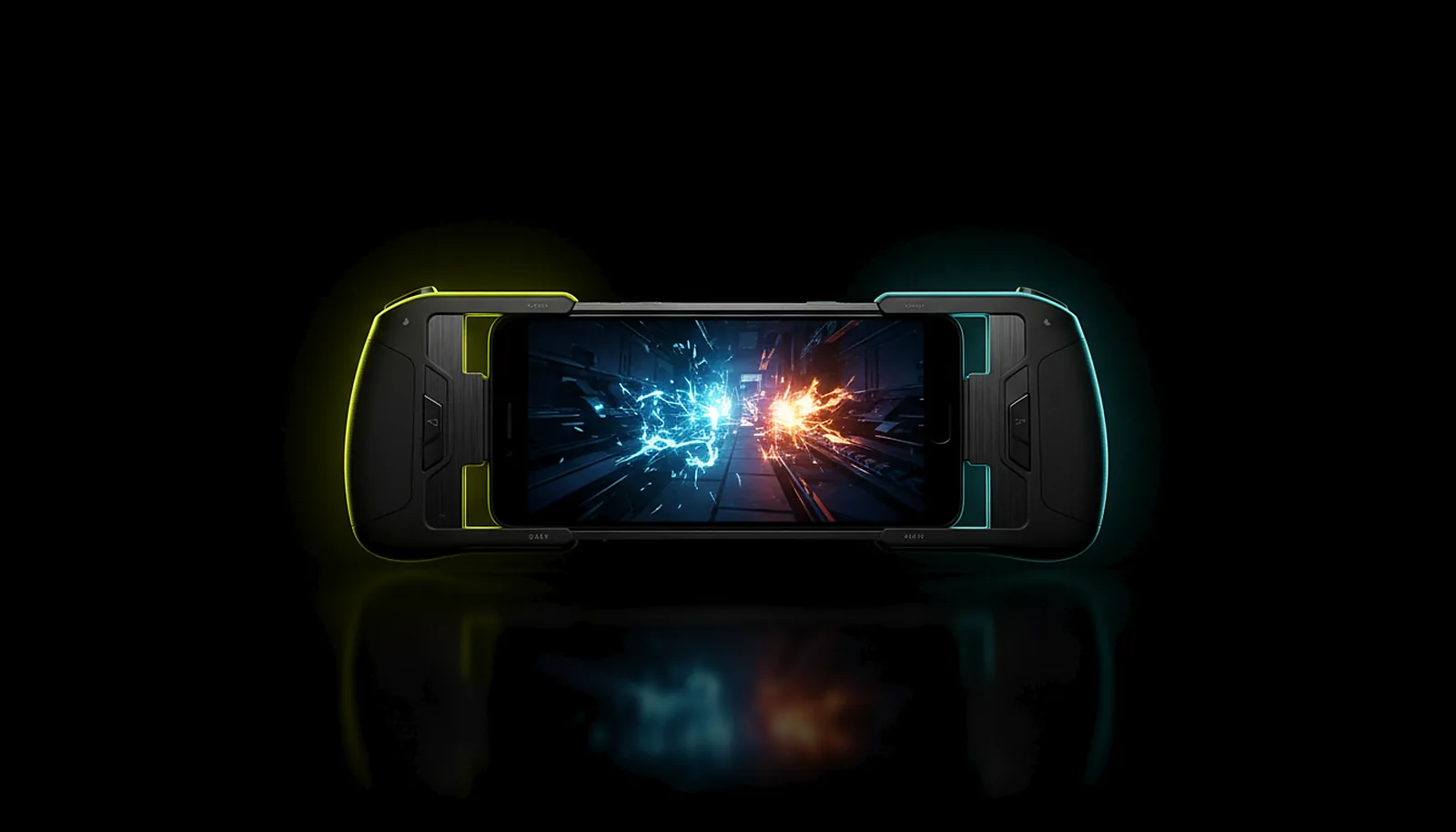
How do I turn my phone into a Steam Deck for my PC games?
Read the answer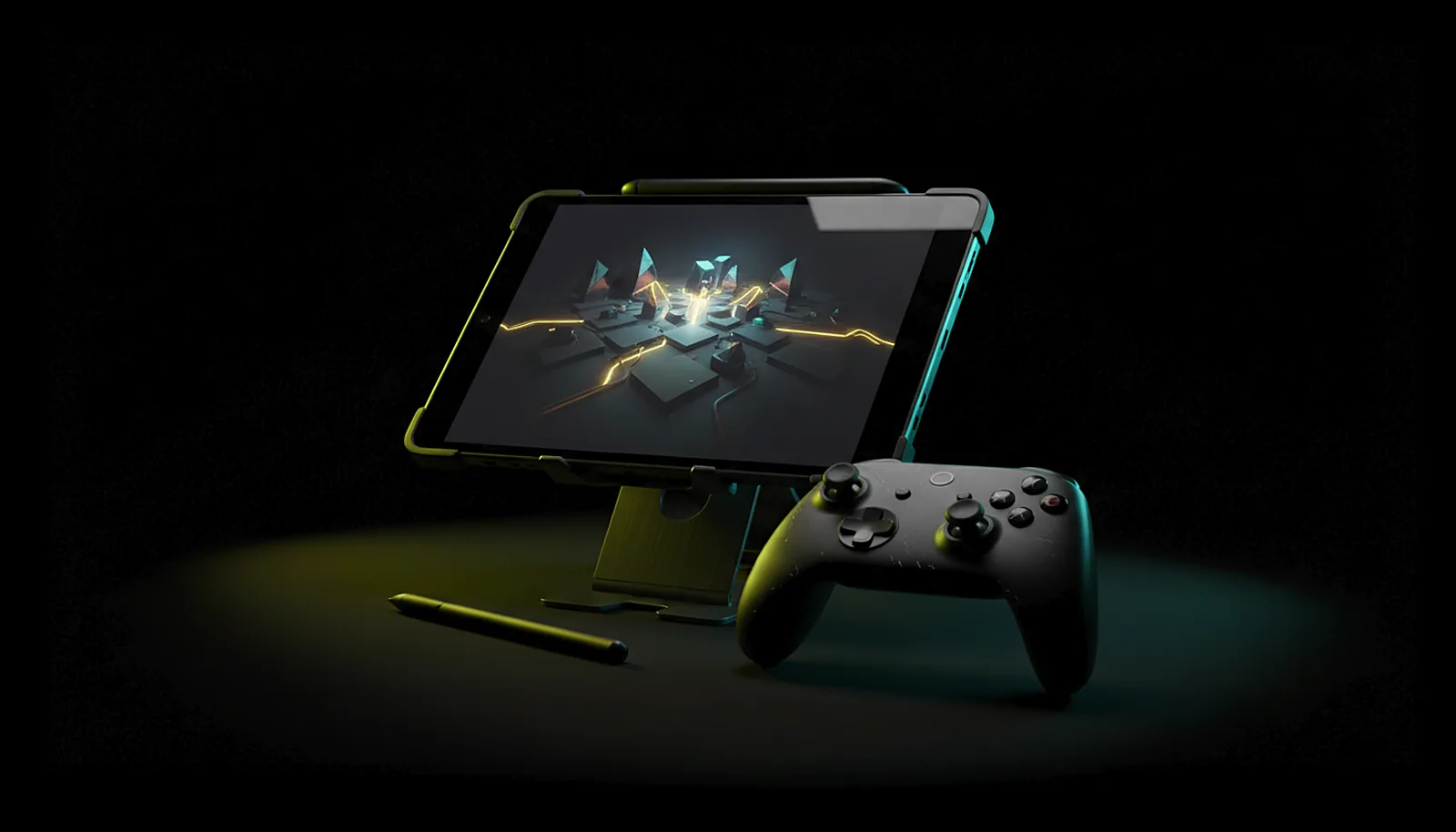 Phone & tablet
How do I play PC games on my tablet with a controller?
Read the answer TV & living room
How do I play PC games on my TV from another room?
Read the answer Away from home
How do I play my PC games away from home without port forwarding?
Read the answer
More questions about this
01Does it need a preset list of resolutions?
No. Any size — 3216×1440, 2412×1080, 2800×1260, 3840×2160 — is learned at pairing and served in the same session.
02What happens to my monitor during the session?
In the default single-display mode it is set aside for the session and your windows move to the streamed display; everything comes back on close. In extended mode your monitor stays on and the streamed display is added as the main one.
03Can the PC lose its picture?
Only during a single-display session, on purpose, and it is restored by four independent mechanisms: the session’s own cleanup, a watchdog that survives the app being killed, a check at the next app start, and a Windows sign-in entry in case of a reboot mid-session.
04Which fit mode should I use?
«Fit» keeps the shape with bars if needed, «Fill» crops, «Stretch» distorts. With the virtual display at the device’s exact resolution none of them is needed.