
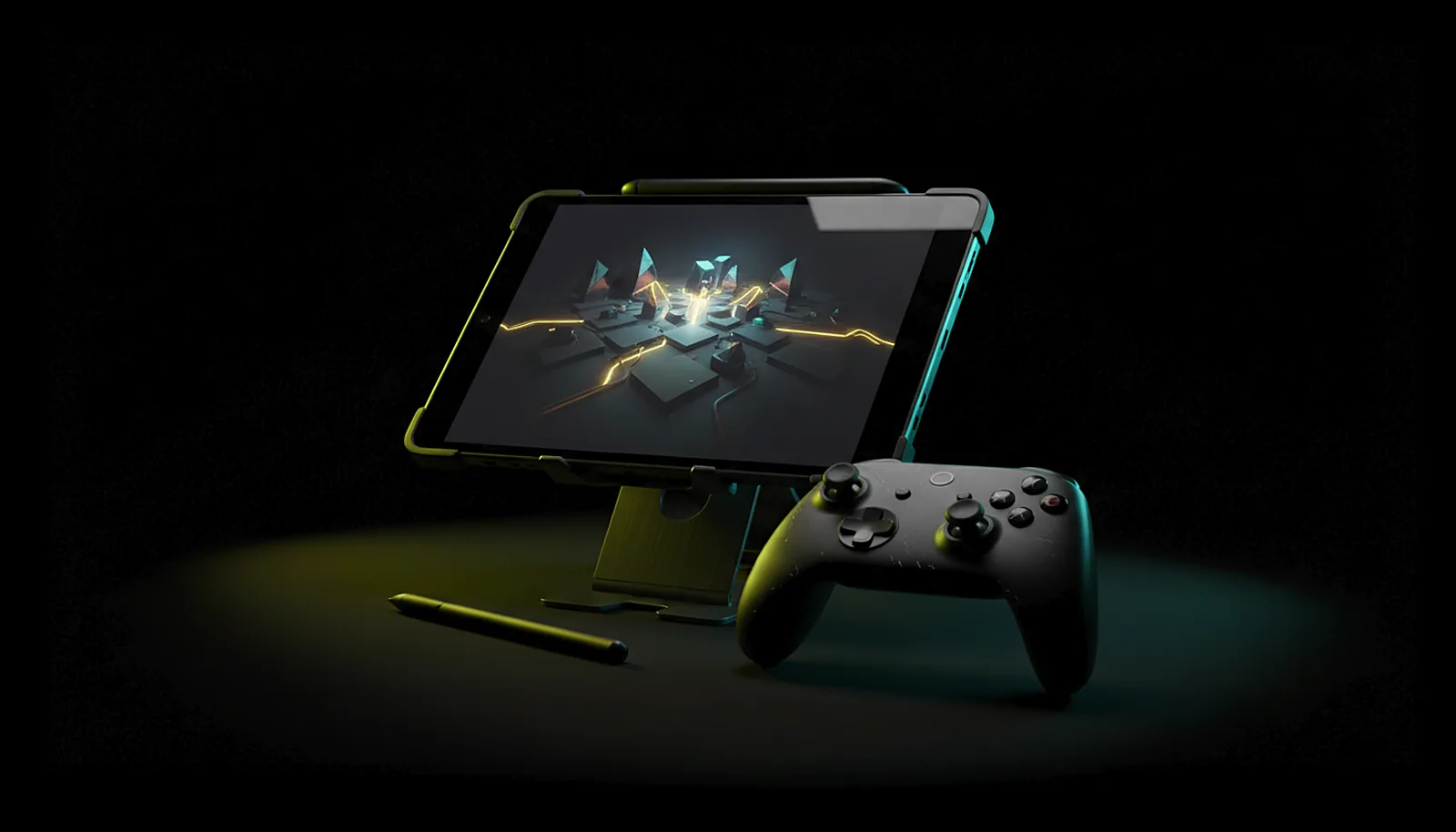
How do I play PC games on my tablet with a controller?
Install ChimpDeck on the Android tablet and ChimpDeck for Windows on the PC, pair once without a PIN, plug the controller into the tablet, and play. The PC renders at the tablet’s exact resolution, the pad reaches it as the real USB device, and touch, pen and keyboard work too.
Updated 2026-09-14
The problem
A tablet on a stand is the perfect console for a bed, a kitchen table or a hotel room — big screen, no cables, a controller in your hands. But the PC games are on the PC, and the tablet apps for streaming them either leave black bars on the 16:10 screen or turn your controller into a pad the game does not quite recognise.
You also want more than a controller: a quick tap on a menu, a pen for a strategy game, a keyboard to type a password. Most clients treat the tablet as a big phone and stop there.
And every time you sit down it is the same ritual: open the host panel on the PC, type the PIN, fix the resolution, pick the pad again.
Why it happens
A tablet is a different device from a phone: a wider screen at 16:10 or 4:3, direct touch that makes sense on a large surface, and often a pen. A client that only knows «fit / fill / stretch» and a virtual gamepad cannot use any of that.
The controller side has the same root cause as everywhere else: streaming tools emulate a generic pad on the PC. The fix is to forward the actual USB device the tablet sees, so Windows loads its official driver.
How to solve it with ChimpDeck
- 01
Install ChimpDeck on the tablet and the host on the PC
Android 8.0 or later with a hardware H.264/HEVC decoder on the tablet; Windows 10/11 with an NVIDIA graphics card on the PC. The Windows installer brings the host, the USB bridge driver and the virtual display adapter in one go.
- 02
Pair without a PIN
Open the PC page on the tablet while both are on the home network; confirm the six-digit number the PC shows. A reinstalled app is recognised and re-paired silently.
- 03
Plug the controller into the tablet
Over USB it reaches Windows as the real device, rumble included; over Bluetooth it works as a virtual Xbox 360 controller, without rumble for now (coming soon). If it does not show up, these are the usual causes.
- 04
Let the PC take the tablet’s shape
The host learned the tablet’s size at pairing — 2560×1600, say — and serves it on a virtual display, so no bars on the 16:10 screen. Your monitor is set aside and comes back when you stop.
- 05
Use the expanded layout
On a tablet the app uses a two-pane layout with a side rail. Touch can be a trackpad or direct absolute touch, pen input is injected natively on the PC, and on-screen or physical keyboards type on the PC with key repeat.
- 06
Take it with you
The same session works away from home with nothing opened on your router, and a network drop pauses the session on the PC for up to 10 minutes instead of ending it.
What you get
The tablet’s exact resolution
16:10, 4:3 or whatever it is, learned at pairing and served full screen.
A real controller on the PC
The USB device itself, official driver, four rumble motors — and the pad can act as a mouse with a long press.
Touch, pen and keyboard on the PC
Trackpad or absolute touch, native pen injection, keyboards with key repeat, clipboard both ways.
A layout made for the size
Expanded two-pane layout with a side rail, one press per setting, no dropdowns.
Compared with Moonlight, Steam Link and Parsec
Moonlight and Steam Link do stream to tablets, but at the PC monitor’s shape unless you set up a virtual display yourself, and with an emulated pad; Steam Link also wants your games in Steam. Parsec handles touch and keyboard well because it is desktop-first, but games get a generic controller. ChimpDeck gives the tablet its exact resolution automatically, forwards the real USB pad and injects touch, pen and keyboard natively, with input permissions enforced on the PC so a brush of the screen cannot move your cursor when you do not want it to. Limits: NVIDIA graphics card for the host, Android tablets only. On a phone the same setup becomes a handheld.
See the full comparison table
 [ GET STARTED ]
Get ChimpDeck —free on Android and Windows.
Install both, pair once, play. Every feature is in the free tier.
ANDROID 8+ · WINDOWS 10/11 · NVIDIA GPU · FREE TO PLAY
Related questions
 Phone & tablet
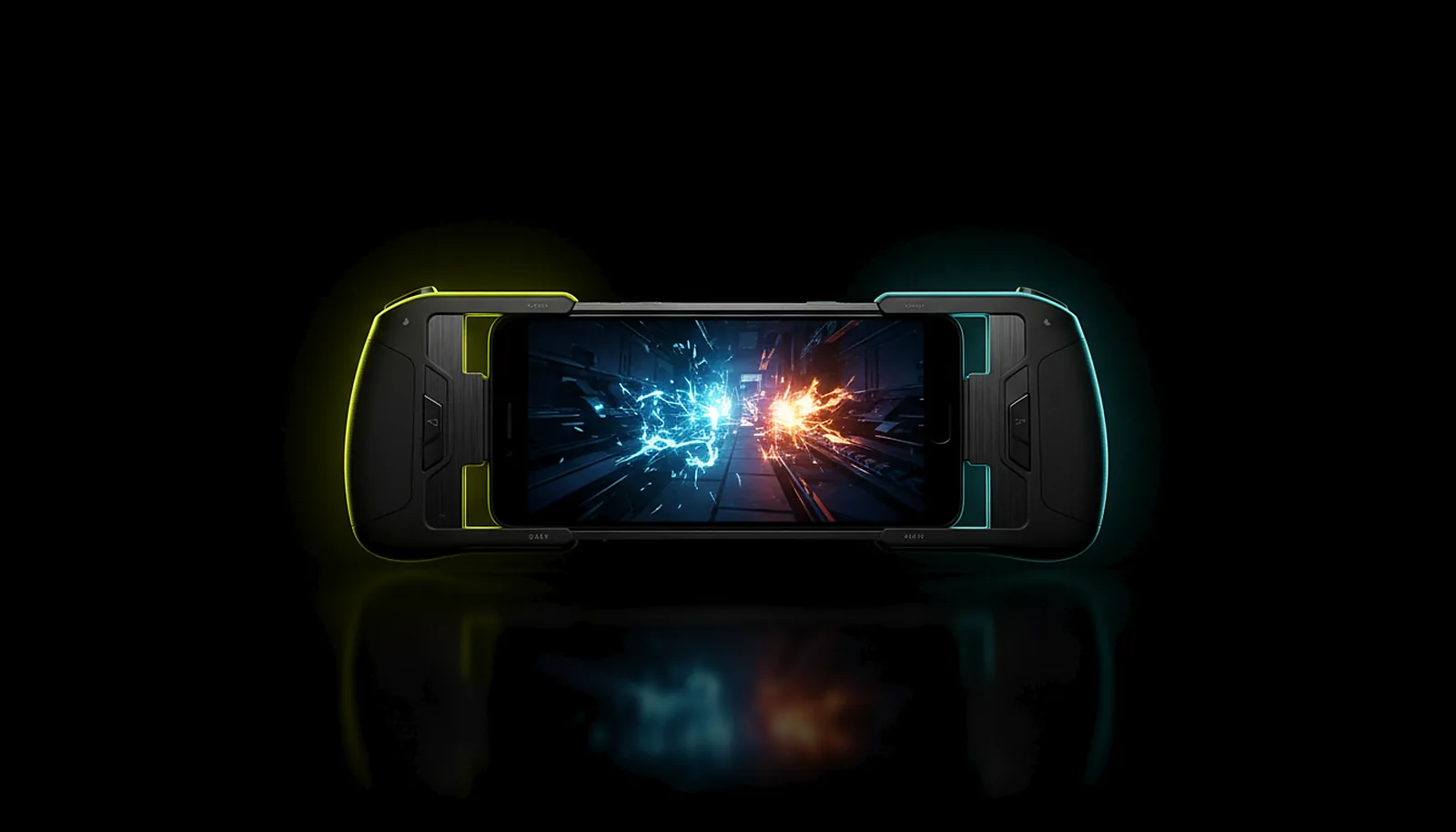
How do I turn my phone into a Steam Deck for my PC games?
Read the answer Picture & quality
Why does Moonlight show black bars on my phone, and how do I get the exact resolution?
Read the answer Controllers
My controller doesn’t work on the NVIDIA Shield — what can I do?
Read the answer Away from home
How do I play my PC games away from home without port forwarding?
Read the answer
More questions about this
01Can I use the pen on the PC?
Yes. Native touch and pen injection on the PC are part of the input support, alongside trackpad or direct absolute touch, and on-screen or physical keyboards.
02Can I stop the tablet from moving the mouse while I watch something?
Yes. ChimpDeck for Windows has three switches — move the pointer, type, use the controller — enforced on the PC. Turn the pointer off and a brush against the screen does nothing.
03Does the tablet need a touchscreen or Wi-Fi?
A touchscreen is optional: every screen and setting also works with a D-pad or a controller. Wi-Fi is optional too; mobile data works for away-from-home play.
04Can I paste text from the tablet to the PC?
Yes. Clipboard tablet → PC, and PC → tablet on request, straight from the stream.