
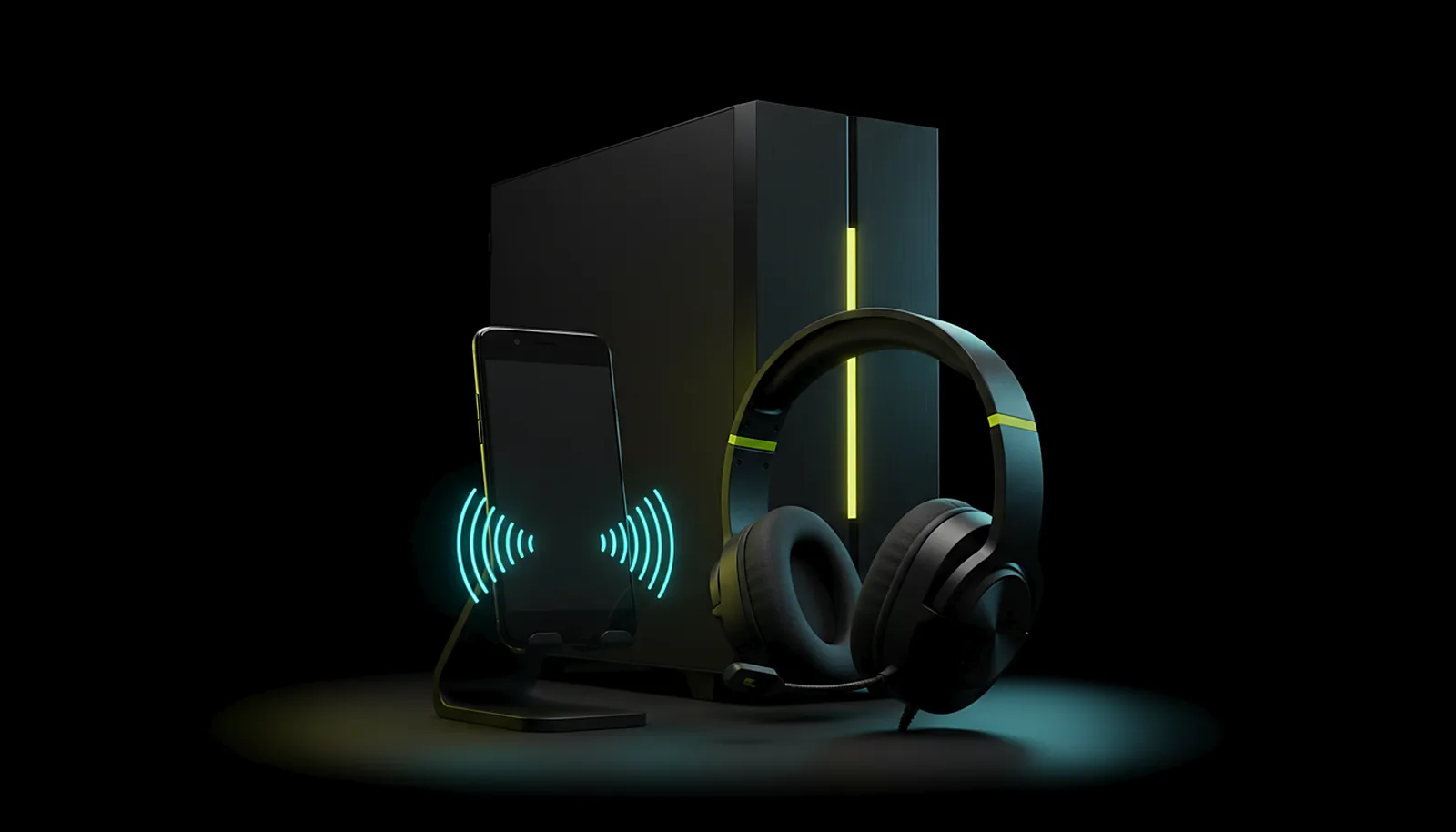
How do I use my phone’s microphone for voice chat on the PC?
With ChimpDeck for Windows, the phone’s microphone appears on the PC as a normal Windows input device through the same link as the stream: Opus at 48 kHz, nothing to configure. Pick it in your voice chat like any microphone. Moonlight + Sunshine do not carry it; Apollo needs Artemis.
Updated 2026-09-14
The problem
You are on the sofa playing your PC on the TV, your squad is on Discord on the PC, and the only microphone is on the desk in the other room. Shouting does not work, and running a second voice app on the phone splits the audio and the muting.
Most streaming clients carry picture, sound and inputs one way, and nothing back except the controller. The microphone is the piece that is missing.
What you want is for the phone in your hands to be the PC’s mic, in whatever program the PC already uses.
Why it happens
A remote-play link has a return channel for inputs, but audio going back to the PC needs a second stream, an encoder on the phone, and — the hard part — a virtual input device on the PC so that Windows programs can pick it as a microphone. Without that device, the audio has nowhere to land.
ChimpDeck for Windows provides that device and the app sends the phone’s mic over the same protected link as everything else, encoded with Opus at 48 kHz like the game audio in the other direction.
How to solve it with ChimpDeck
- 01
Pair the phone with ChimpDeck for Windows
The microphone needs ChimpDeck’s host on the PC; with a Sunshine or Apollo host the stream works but the mic does not travel. Pairing takes a matching number, no PIN.
- 02
Allow the microphone on the phone
Android asks once for the microphone permission when you enable it in the app; the mic is only sent while you have it on.
- 03
Pick it on the PC
The phone’s mic shows up as a normal Windows input device. In Discord, Steam voice or any program, choose it as the microphone as you would a USB headset.
- 04
Talk
Voice travels over the same end-to-end protected link as the picture and the controller — nothing passes through ChimpDeck’s servers.
- 05
Use it beyond games
Dictation, a call, a meeting: anything on the PC that takes a microphone. Combined with touch, pen and keyboard on a tablet the PC is fully usable from the sofa.
What you get
A normal Windows input device
Any program on the PC can select it; no virtual cable software, no routing tricks.
Same link, same protection
Opus at 48 kHz over the protected connection the stream already uses.
Nothing to configure
Enable it in the app, pick it on the PC. The device appears with ChimpDeck for Windows.
Works on TV boxes too
A phone or tablet with a mic can feed the PC even while the picture goes to [[play-pc-on-tv-another-room|the living-room TV]] from another device.
Compared with Moonlight, Steam Link and Parsec
Moonlight with a Sunshine host does not carry the phone’s microphone in stable releases; with an Apollo host it is not in a release yet (an open pull request adds it, with patched clients). Steam Link does not. Parsec does from Windows and macOS clients, not from Android — it was built for desktops and meetings, and there its microphone support is a genuine strength. ChimpDeck gives you the microphone as part of the same gaming link, with the real USB controller and exact resolution alongside. The limit: it needs ChimpDeck for Windows on the PC (NVIDIA graphics card for the stream), and the microphone reaches the PC in mono, which is all a voice needs.
See the full comparison table
 [ GET STARTED ]
Get ChimpDeck —free on Android and Windows.
Install both, pair once, play. Every feature is in the free tier.
ANDROID 8+ · WINDOWS 10/11 · NVIDIA GPU · FREE TO PLAY
Related questions
 Phone & tablet
How do I play PC games on my tablet with a controller?
Read the answer TV & living room
How do I play PC games on my TV from another room?
Read the answer Setup & privacy
Is streaming my PC to my phone private and safe?
Read the answer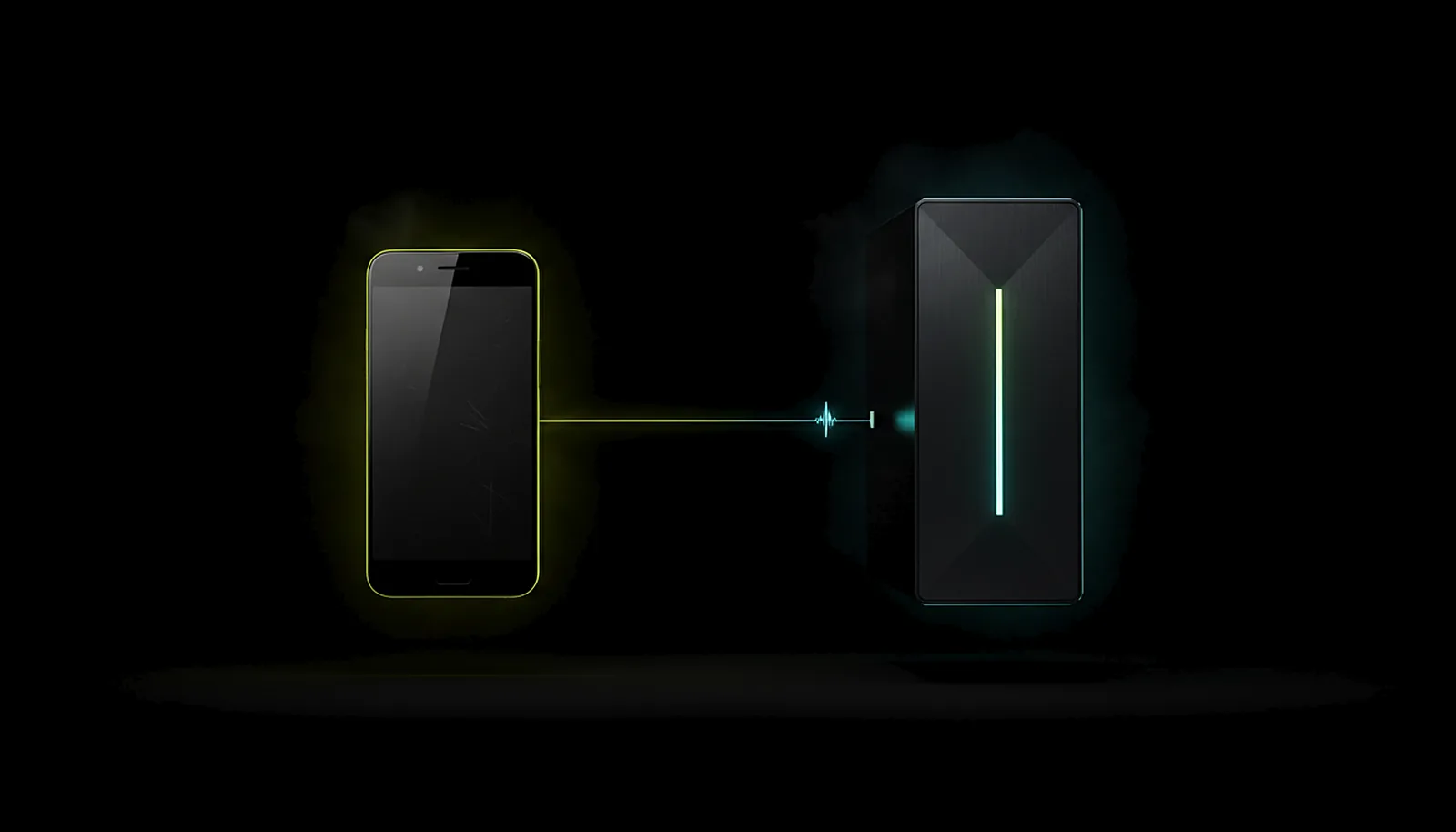 Setup & privacy
How do I pair my phone with my gaming PC without typing a PIN?
Read the answer
More questions about this
01Does the microphone work with a Sunshine or Apollo host?
No. The microphone needs ChimpDeck for Windows. With Sunshine it is not available; with Apollo it is not in a release yet (an open pull request adds it with patched clients).
02Can I mute the mic from the phone?
Yes: the mic is only sent while it is enabled in the app; turn it off and nothing is transmitted.
03Can the PC also send its sound to the phone?
Yes, that is the normal direction: Opus 48 kHz with a 10 ms cushion, in stereo, 5.1 or 7.1 depending on what your TV or receiver accepts. «Perfect sound» on the PC routes the audio through a virtual output for the session and restores it after, and «Mute the PC while playing» keeps the room quiet.
04Is the microphone audio private?
It travels over the same end-to-end protected link between the phone and the PC as everything else; the meeting point never sees it.