
Steam Link stutters and lags on my Android TV — how do I fix it?
Stutter on a TV box usually has three causes: Wi-Fi dropping packets, a display refresh that does not multiply the stream’s frame rate, or a bitrate set blind. Wire the box if you can, then use a client that paces frames to the display and reads the PC’s telemetry: ChimpDeck.
Updated 2026-09-14
The problem
The picture on the TV looks fine for a minute and then hitches: a frame held too long, a burst of judder in a pan, input that feels a step behind. You lower the resolution, it helps a little, then it comes back.
Steam Link is convenient if you live in Steam, but its settings on the TV are few, the game gets a generic pad, and when it stutters it does not tell you whether the problem is your Wi-Fi, the PC’s encoder or the TV box. So you guess.
And every guess costs a reconnect: leave the game, change a slider, start again.
Why it happens
A stream has a cadence — 60 frames a second, say — and the TV has a refresh rate. If the two do not line up, some frames are shown twice and some skipped, which looks like judder even when nothing was lost. Then the network: Wi-Fi in a flat with neighbours loses packets in bursts, and a lost packet means a frame arrives late or broken.
Finally the encoder: the PC may simply not keep up with the resolution and bitrate you asked for, and a client that only sees packet loss cannot tell that apart from a bad link. A stutter at the source looks like a stutter on the network unless the host tells you.
How to solve it with ChimpDeck
- 01
Wire the TV box if you can
An Ethernet-connected TV box works the same in ChimpDeck and removes the biggest variable. If it must be Wi-Fi, the app enables Android’s low-latency Wi-Fi mode while a session is live.
- 02
Install ChimpDeck on the box and the host on the PC
Android 8.0 or later with a hardware H.264/HEVC decoder; Windows 10/11 with an NVIDIA graphics card. Pair without a PIN. The whole app is driven by the remote — the full TV setup takes minutes.
- 03
Let the display follow the stream
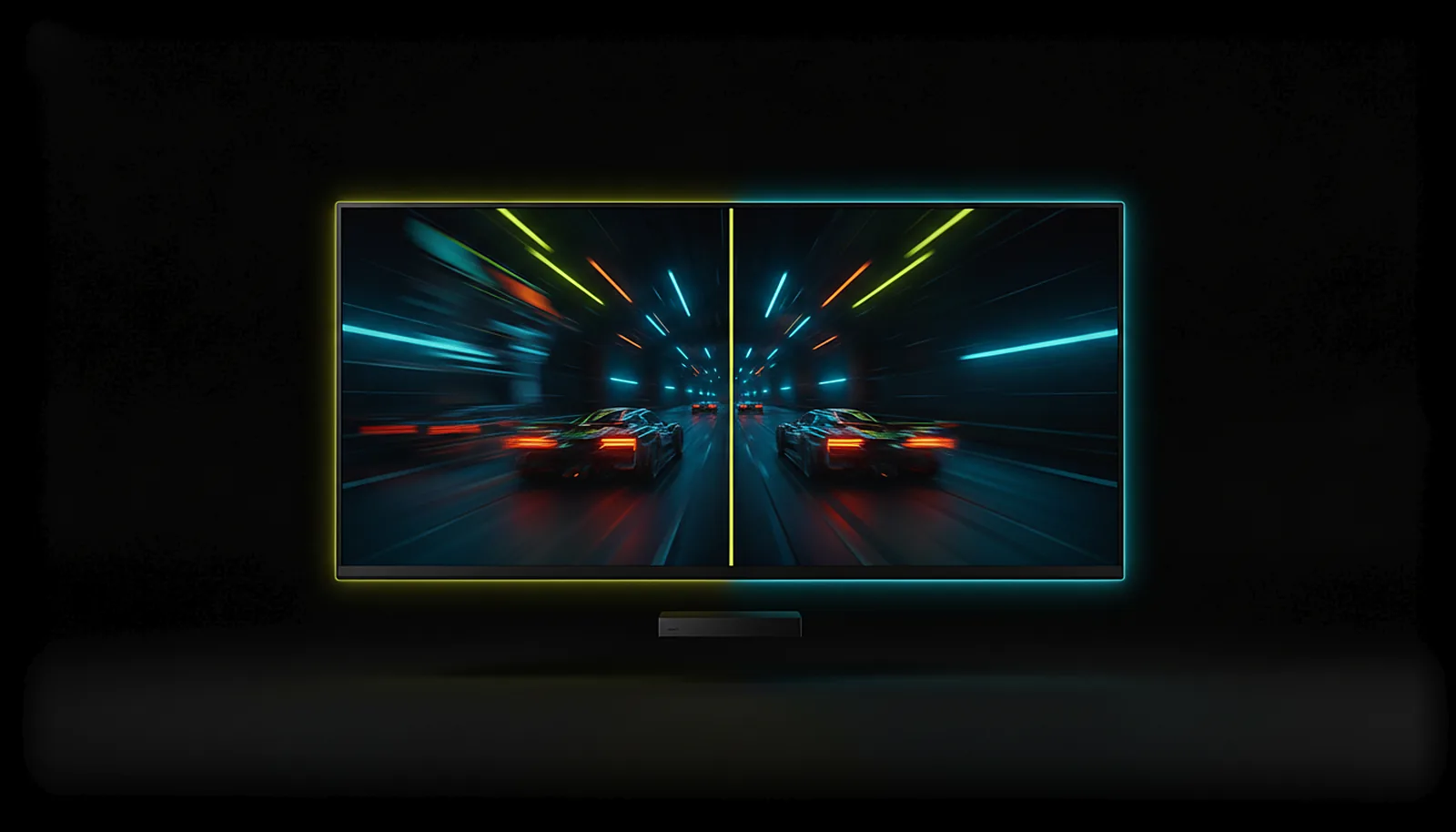
ChimpDeck switches the TV to the refresh rate that best multiplies the stream’s frame rate (120 Hz for 60 fps, for instance) and the frame pacer keeps presentation regular. Three pacing modes: lowest delay, balanced, smoothest.
- 04
Read the stats, not your gut
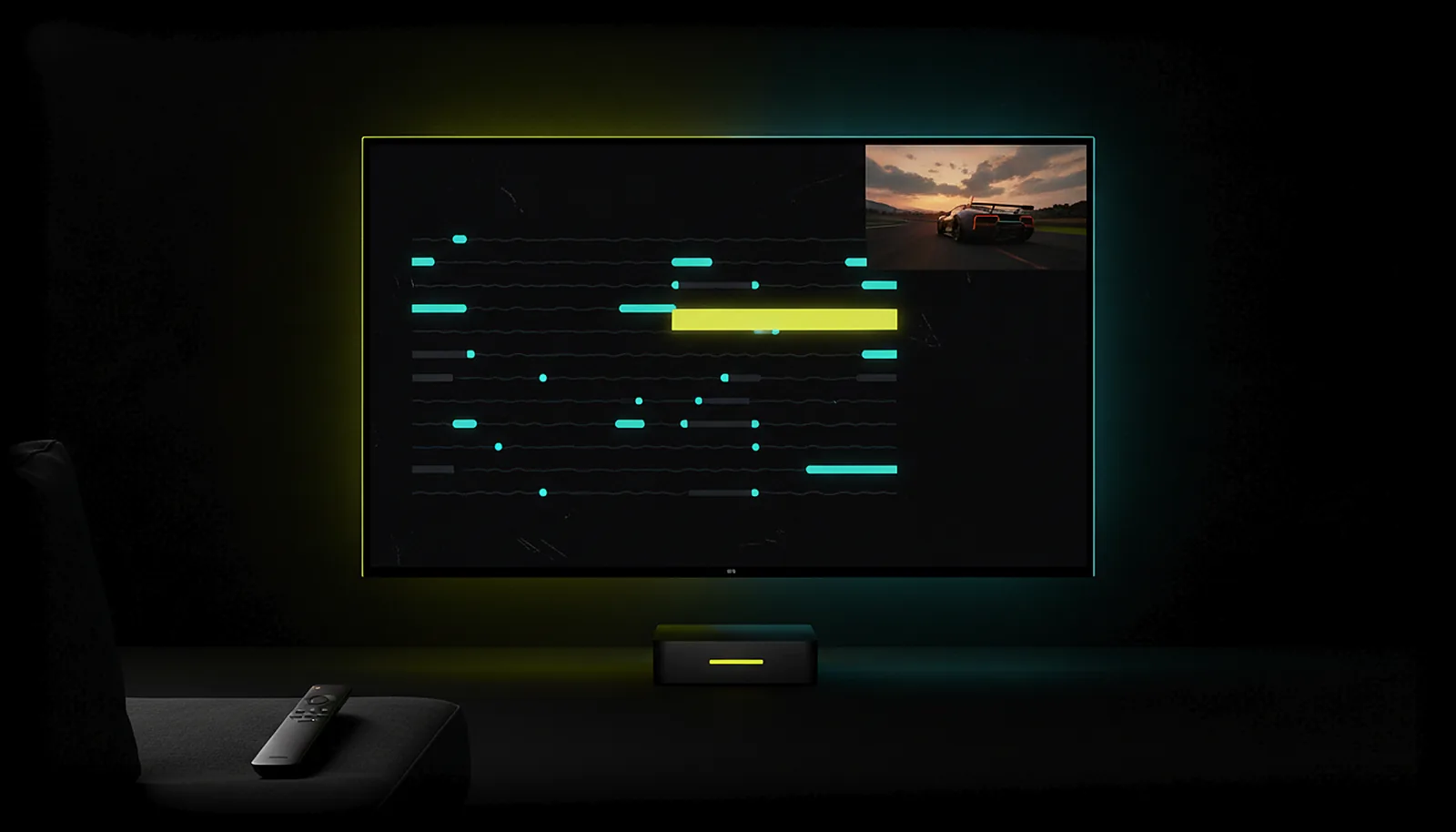
The overlay shows frames, drops, repairs, encode time, round trip, decode time and pacing, plus the PC’s own report — and the PC panel says the cause in words: «the phone asks to repair: check the network» or «the PC isn’t keeping up with those frames».
- 05
Change quality without reconnecting
Bitrate, frame budget and repair change live, mid-game. The regulator lowers bitrate and raises repair when it sees losses, and puts them back when the link recovers. Good starting settings are here.
- 06
Never play through a corrupted frame
Every frame carries a checksum; a damaged one is repaired with FEC or skipped and a key frame requested, so blocks never smear across the TV.
What you get
Display refresh matched to the stream
The TV switches to a multiple of the frame rate; judder from mismatched cadences disappears.
A regulator with the PC in the loop
Capture cadence, encode time and real encoder output tell a source stutter from a network one.
Hot changes, no reconnect
Bitrate, budget and repair adjust live from the sofa, on the remote.
Up to 120 fps where the box can
The frame-rate row only offers rates the decoder really plays — [[stream-120-fps|here is how to get there]].
Compared with Moonlight, Steam Link and Parsec
Steam Link streams well when it works, and staying inside Steam is genuinely zero setup; if that is your priority, keep it. But it regulates from the client side only, changing quality means reconnecting, and the controller is emulated. Moonlight + Sunshine give you more knobs, still with a reconnect to change bitrate and no host telemetry in the loop. ChimpDeck’s host and app agree on cadence, telemetry and repair, so the stutter gets a name and a fix without leaving the game — and the pad on the box is the real USB device. The honest part: ChimpDeck needs its own host with an NVIDIA graphics card, and the app does not publish a latency figure it has not measured on your network.
See the full comparison table
 [ GET STARTED ]
Get ChimpDeck —free on Android and Windows.
Install both, pair once, play. Every feature is in the free tier.
ANDROID 8+ · WINDOWS 10/11 · NVIDIA GPU · FREE TO PLAY
Related questions
 Picture & quality
What are the best streaming settings for PC games on Android TV?
Read the answer Picture & quality
Why is my game stream pixelated or corrupted over Wi-Fi?
Read the answer Picture & quality
How do I stream my PC games at 120 fps to my phone or TV?
Read the answer TV & living room
How do I play PC games on my TV from another room?
Read the answer Controllers
My controller doesn’t work on the NVIDIA Shield — what can I do?
Read the answer
More questions about this
01Does ChimpDeck work with games outside Steam?
Yes. You add games or programs with box art on the PC and they appear on the TV; the Desktop is always there. Any launcher works because it is your PC being streamed.
02Will Wi-Fi ever be as good as a cable?
Rarely for 4K. The app keeps Android’s low-latency Wi-Fi mode on during a session and adapts bitrate and repair live, but a wired box removes the bursts of loss that cause most hitches.
03Why did the picture freeze for a moment instead of showing garbage?
By design: after a lost frame the app waits for the next key frame, requested at once and again every 500 ms, instead of decoding half a picture. A short hitch beats a smear that lasts seconds.
04How much latency does ChimpDeck add?
It depends on the network, the box and the PC. The app measures it with a synchronised clock and shows it with its margin of error; no number is published on purpose.