
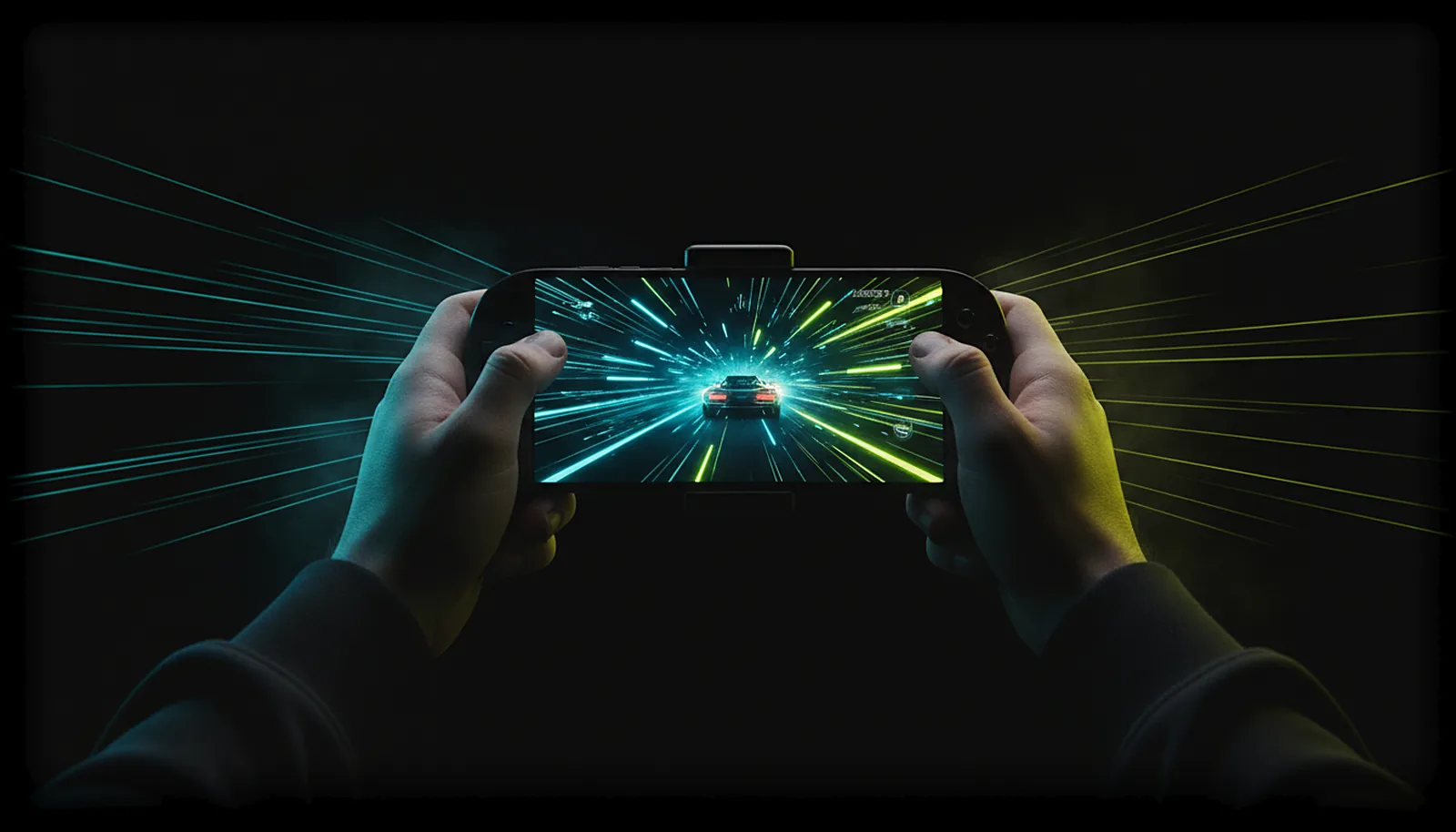
How do I stream my PC games at 120 fps to my phone or TV?
Pick 120 in ChimpDeck’s frame-rate row. The app offers 30, 60, 90 or 120 fps, only the rates your device’s decoder and your PC can really deliver, and switches the display to a matching refresh rate. You need a 120 Hz screen, an NVIDIA GPU and a good link.
Updated 2026-09-14
The problem
Your phone has a 120 Hz screen, your PC pushes well over 100 fps, and the stream between them is stuck at 60. Motion looks smeared next to the monitor, and in a fast game you feel every missing frame.
Some clients list 120 fps but the result is judder, because the phone’s display never left 60 Hz or the decoder cannot keep up at that resolution. Others hide the option entirely.
What you want is the rate your hardware can actually do, not a checkbox that promises it.
Why it happens
Three things have to agree for 120 fps to be real: the PC must capture and encode 120 frames a second (an NVIDIA GPU with NVENC does this well at 1080p and 1440p), the phone or TV must decode them in hardware at that rate, and the display must refresh at 120 Hz — or a multiple — so every frame is shown once.
A client that offers 120 without checking the decoder will stutter; one that leaves the display at 60 Hz will show frames twice and drop others. Getting it right means asking the hardware and matching the screen.
How to solve it with ChimpDeck
- 01
Check the hardware
Phone, tablet or TV box with a 120 Hz display and a hardware H.264/HEVC decoder; Windows 10/11 with an NVIDIA graphics card. Recent flagships and the better TV boxes qualify.
- 02
Pick the frame rate in the app
The «frames per second» row offers 30, 60, 90 and 120 — only what your decoder really supports, so if 120 is listed it is because the device can play it. The display then follows: the app switches the screen to the refresh rate that best multiplies the stream.
- 03
Choose a resolution the link can carry
120 fps doubles the frames, so start at your device’s exact size or the 1440-high option; the honest resolution list says how each will arrive. Bitrate adapts live, but a wired TV box or a strong Wi-Fi link helps.
- 04
Pick a pacing mode
Lowest delay, balanced or smoothest. Balanced is the default; smoothest trades a touch of delay for perfectly even presentation, lowest delay does the opposite.
- 05
Read the overlay
Frames, drops, repairs, encode time, round trip and decode time tell you if the PC, the network or the decoder is the limit. On a TV box, these are the usual causes of judder; good starting settings are here.
What you get
Only rates you can play
The frame-rate row lists what the decoder and the PC can really deliver — no promise the hardware cannot keep.
The display follows the stream
120 Hz for 120 fps, or a multiple for 60, so every frame is shown exactly once.
Exact resolution too
The PC renders at your device’s size on a virtual display: [[black-bars-exact-resolution|no bars at any frame rate]].
Live control from the phone
Bitrate, frame budget, repair and encoder settings change mid-game with ChimpDeck for Windows.
Compared with Moonlight, Steam Link and Parsec
Moonlight with Sunshine or Apollo streams at 120 fps too, and adds AV1 on hardware that supports it (coming soon on ChimpDeck); the difference is around the edges: ChimpDeck only offers rates the decoder can really play, matches the display refresh automatically, and lets you change bitrate and pacing without reconnecting, with the PC’s telemetry in the loop. Steam Link is in the 4K60 class on Android TV, and Parsec’s Android client is partial on high-rate HEVC. The honest limits: ChimpDeck’s host needs an NVIDIA card, and there is no AV1 yet (HDR10 is there). On a phone with a clip-on pad, 120 fps at the exact resolution is what turns it into a real handheld.
See the full comparison table
 [ GET STARTED ]
Get ChimpDeck —free on Android and Windows.
Install both, pair once, play. Every feature is in the free tier.
ANDROID 8+ · WINDOWS 10/11 · NVIDIA GPU · FREE TO PLAY
Related questions
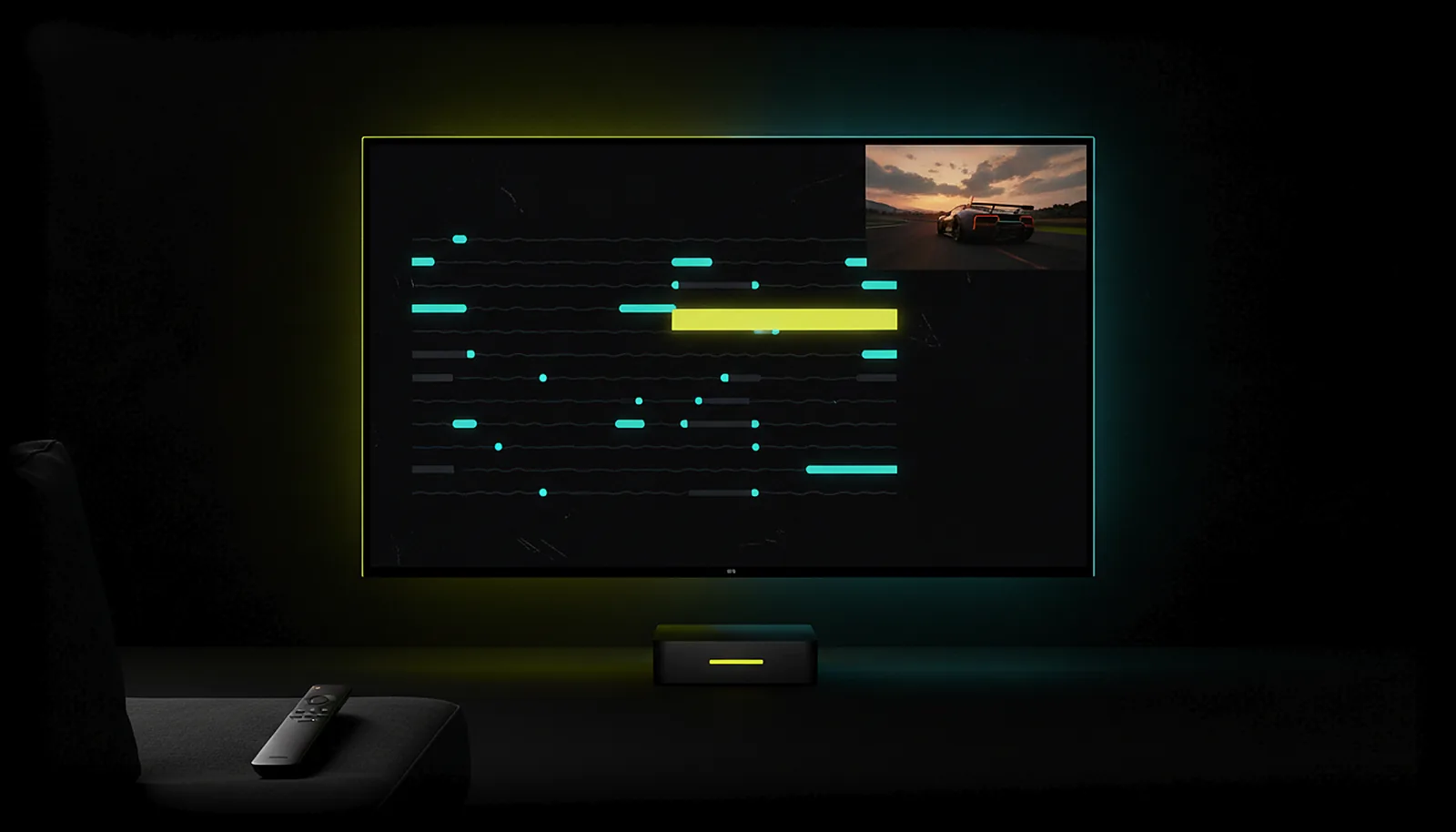 Picture & quality
What are the best streaming settings for PC games on Android TV?
Read the answer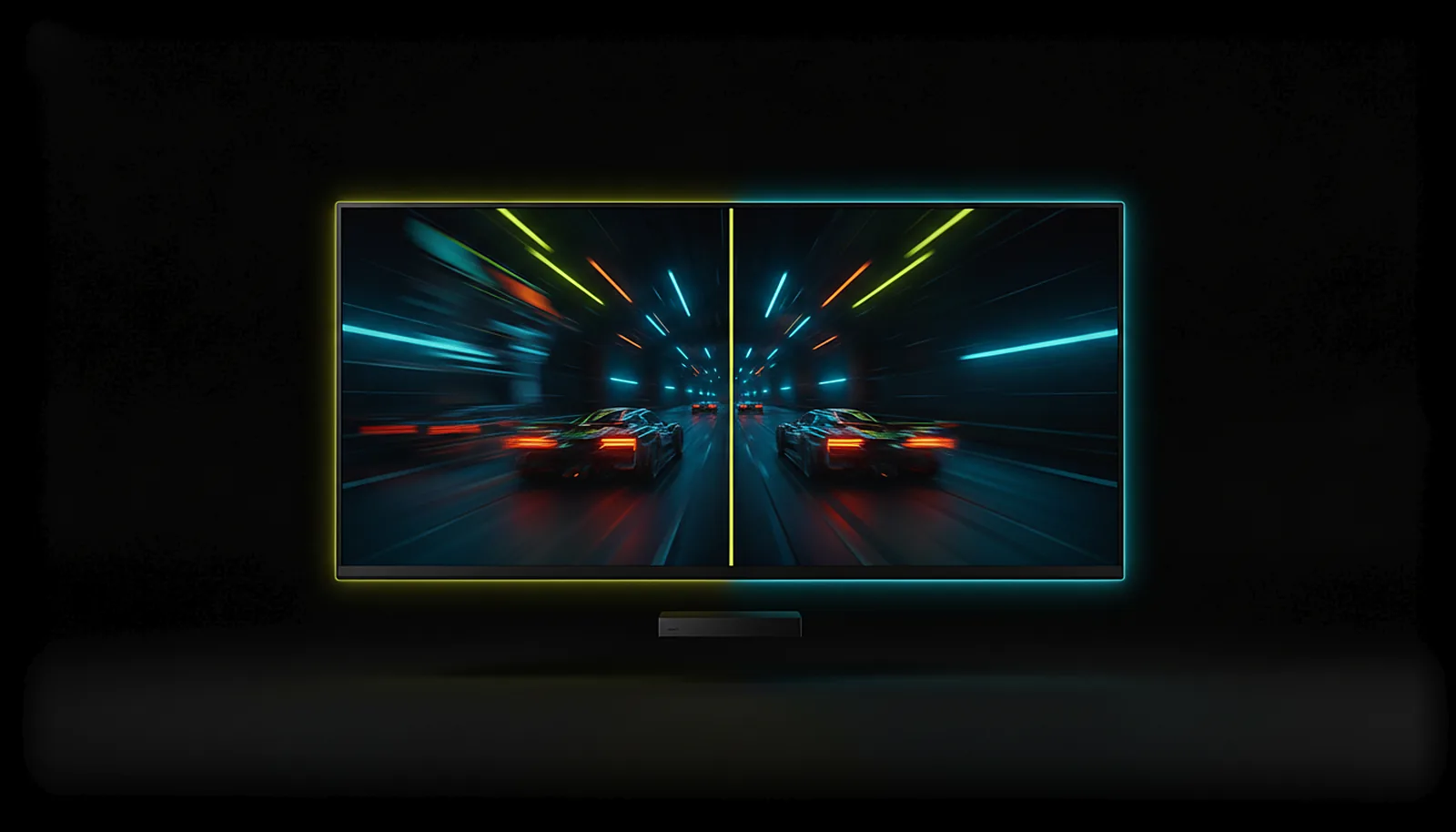 Picture & quality
Steam Link stutters and lags on my Android TV — how do I fix it?
Read the answer Picture & quality
Why does Moonlight show black bars on my phone, and how do I get the exact resolution?
Read the answer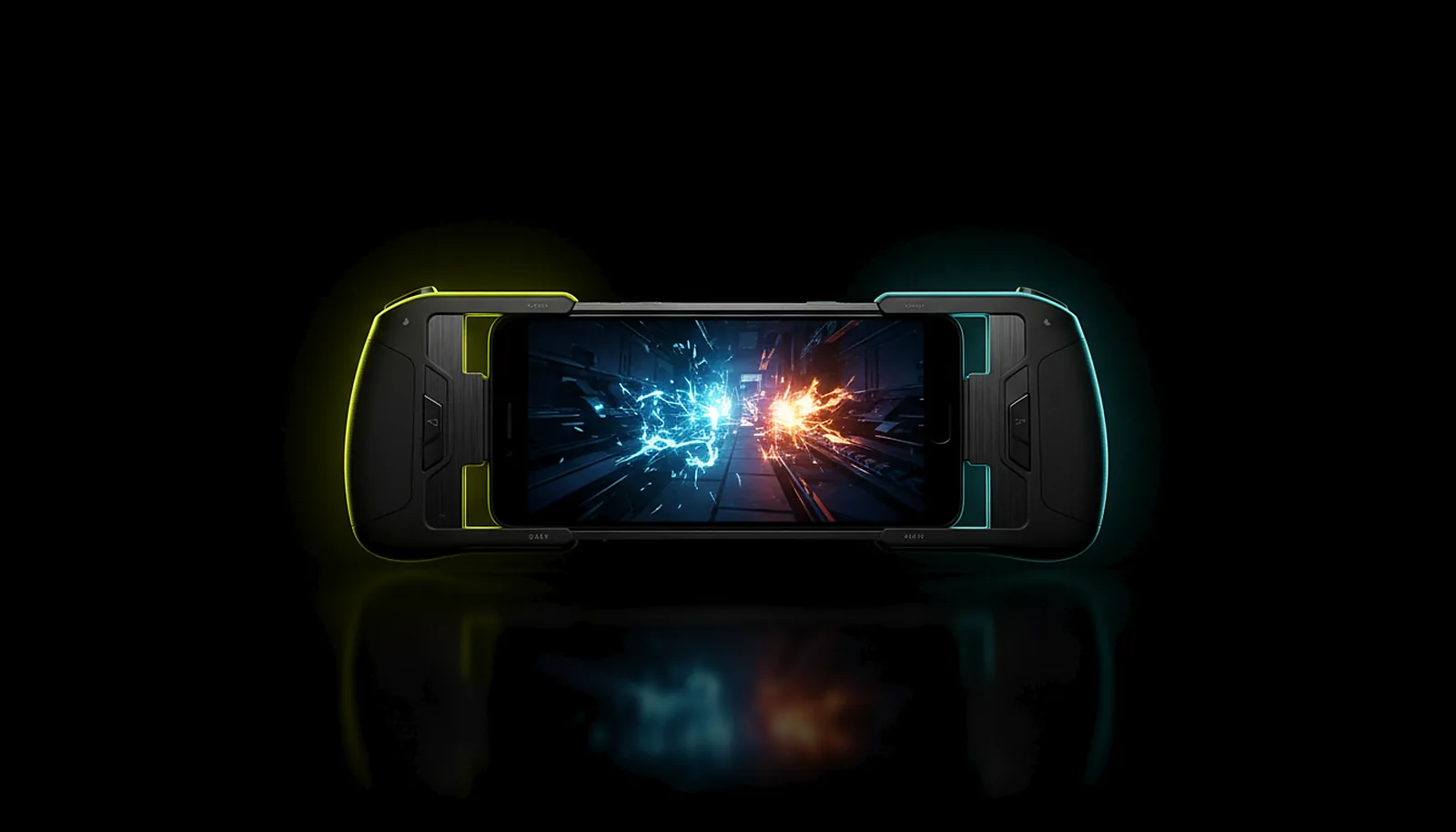 Phone & tablet
How do I turn my phone into a Steam Deck for my PC games?
Read the answer
More questions about this
01Can I stream at 120 fps on 4K?
Only if the device decoder and the PC can; the frame-rate row offers 120 only when the decoder really supports it at that resolution. 4K at 60 fps is the safer target on TV boxes.
02Does the TV or phone have to be 120 Hz?
For 120 fps to look right, yes: the app switches the display to a refresh rate that multiplies the stream. On a 60 Hz screen, stream at 60.
03H.264 or HEVC for 120 fps?
The app picks HEVC when the device has a good hardware HEVC decoder with low-latency support, otherwise H.264. AV1 is coming soon: it is already wired through the code, not enabled yet.
04How much latency does it add?
It depends on the network, the device and the PC. The app measures it with a synchronised clock and shows it with its margin of error; no number is published on purpose.