
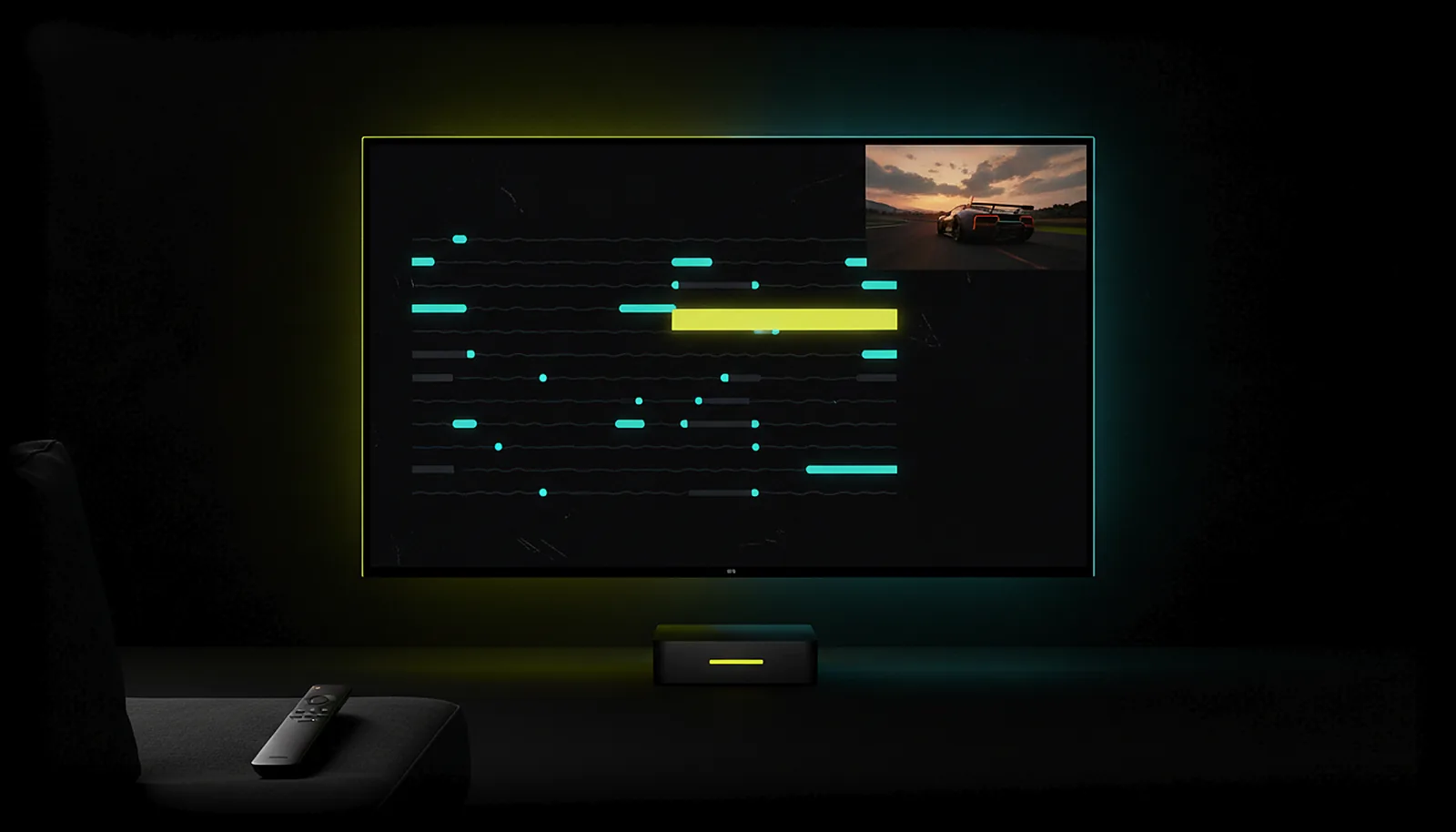
What are the best streaming settings for PC games on Android TV?
Wire the TV box, pick the TV’s own resolution, 60 fps (120 only if the TV and decoder do it), the suggested bitrate, balanced pacing, and let the app choose HEVC or H.264. Then leave the regulator on and read the stats: it changes bitrate and repair live.
Updated 2026-09-20
The problem
Every streaming client on the TV has a page of numbers — resolution, frame rate, bitrate, codec, pacing — and no way to know which combination is right for your box, your Wi-Fi and your PC. Forums give you someone else’s numbers for someone else’s setup.
Set the bitrate too high and the picture breaks up; too low and it is soft. Pick a frame rate the box cannot decode and it stutters. Pick the wrong resolution and you get bars.
You want a starting point that works and a way to tell, from the sofa, what to change.
Why it happens
The right settings are the ones your hardware can actually deliver: the decoder in the box sets the ceiling for resolution and frame rate, the network sets the bitrate the link can carry, and the PC’s encoder sets how fast frames can be made. A client that offers everything lets you pick the impossible.
ChimpDeck narrows the choices to the possible ones — resolutions labelled with how they will arrive, frame rates the decoder really plays — and then regulates bitrate and repair live with the PC’s own telemetry, so the number you pick is a starting point, not a bet.
How to solve it with ChimpDeck
- 01
Cable the box
An Ethernet-connected TV box removes most stutter before any setting. If it must be Wi-Fi, the app keeps Android’s low-latency Wi-Fi mode on during the session — the stutter causes are here.
- 02
Resolution: the TV’s own
The list starts with your device’s size, then the PC monitor’s exact aspect at native, 1440, 1080 and 720 heights, then standards — each labelled monitor mode, exact via virtual display, or with bars. Choose the TV’s own for no bars; drop to 1440 high if the link struggles.
- 03
Frame rate: 60, or what the box really does
The row offers only rates the decoder supports. 60 fps is the safe choice on most boxes; 120 needs a 120 Hz TV and a decoder that keeps up. The display refresh follows the stream automatically.
- 04
Bitrate: suggested, and let it regulate
Start with «Suggested». The regulator lowers bitrate and raises repair when it sees losses and puts them back when the link recovers, live, without reconnecting; the PC’s telemetry tells it whether the source or the network is the limit.
- 05
Pacing: balanced; codec: automatic
Balanced is the default; «lowest delay» for competitive play, «smoothest» for cinematic games. The app picks HEVC when the box has a good low-latency HEVC decoder, otherwise H.264.
- 06
Read the overlay, then adjust
Frames, drops, repairs, encode time, round trip, decode time and pacing, plus the PC’s own report with the cause in words. If the PC is not keeping up, lower the resolution; if the network is, the regulator already did — and corruption never sticks either way.
What you get
Only possible choices
Resolutions labelled with how they arrive; frame rates the decoder really plays.
A regulator that sees the PC
Capture cadence, encode time and real encoder output, not just packet loss.
Changes without reconnecting
Bitrate, budget, repair and encoder controls change mid-game from the remote.
A cause, not a mystery
The PC panel says «the phone asks to repair: check the network» or «the PC isn’t keeping up with those frames».
Compared with Moonlight, Steam Link and Parsec
Moonlight with Sunshine or Apollo exposes similar knobs and a wider codec list (AV1 on supporting hardware; coming soon on ChimpDeck, today H.264 and HEVC), but each change means leaving the game and reconnecting, and the client regulates from packet loss alone. Steam Link keeps its settings minimal on the TV. ChimpDeck’s difference is not more knobs but fewer wrong ones, live changes, and the PC in the regulation loop. Limits to know: NVIDIA graphics card for ChimpDeck’s host, and no AV1 yet (H.264 and HEVC, in SDR or HDR10, with stereo, 5.1 or 7.1 sound). These settings apply to any Android TV box, not only the Shield.
See the full comparison table
 [ GET STARTED ]
Get ChimpDeck —free on Android and Windows.
Install both, pair once, play. Every feature is in the free tier.
ANDROID 8+ · WINDOWS 10/11 · NVIDIA GPU · FREE TO PLAY
Related questions
 Picture & quality
Steam Link stutters and lags on my Android TV — how do I fix it?
Read the answer Picture & quality
How do I stream my PC games at 120 fps to my phone or TV?
Read the answer Picture & quality
Why is my game stream pixelated or corrupted over Wi-Fi?
Read the answer Picture & quality
Why does Moonlight show black bars on my phone, and how do I get the exact resolution?
Read the answer TV & living room
Can I play PC games on any Android TV box, not just the Shield?
Read the answer
More questions about this
01Should I use HEVC or H.264?
Let the app decide: it picks HEVC when the device has a good hardware HEVC decoder with low-latency support, otherwise H.264. AV1 is not enabled yet.
02Which fit mode should I use?
«Fit» keeps the picture’s shape with bars if needed, «Fill» crops, «Stretch» distorts. With the virtual display at the TV’s exact resolution none of them is needed.
03Can I change the encoder settings from the TV?
Yes, with ChimpDeck for Windows: compression preset, two-pass mode, adaptive quantisation, per-frame budget slack and quality ceiling, applied live where the encoder allows.
04Does HDR work on the TV?
Yes, with ChimpDeck for Windows: leave «HDR» on YES in the PC screen section. The app asks for it only when the TV advertises HDR10 and the box decodes 10-bit HEVC; the PC then switches Windows HDR on for the captured display during the session and off afterwards, and the TV shows its HDR badge. It is HDR10 — no streaming app produces Dolby Vision.
05How do I get 5.1 or 7.1 sound?
Leave «Surround sound» on Automatic: the app asks the PC for the channels your box’s HDMI advertises, and the PC mixes the game in that layout for the session. Leave «How surround goes out» on Automatic too: if the box’s sound reaches the receiver over optical or ARC (not eARC), links that only carry uncompressed stereo, the app encodes the 5.1 as Dolby Digital itself and passes it through, the same way a console does, and your receiver lights its Dolby indicator. Box plugged straight into the receiver, or eARC? Pick PCM there and the six channels go out uncompressed.
06How much latency does it add?
It depends on the network, the box and the PC. The app measures it with a synchronised clock and shows it with its margin of error; no number is published on purpose.