
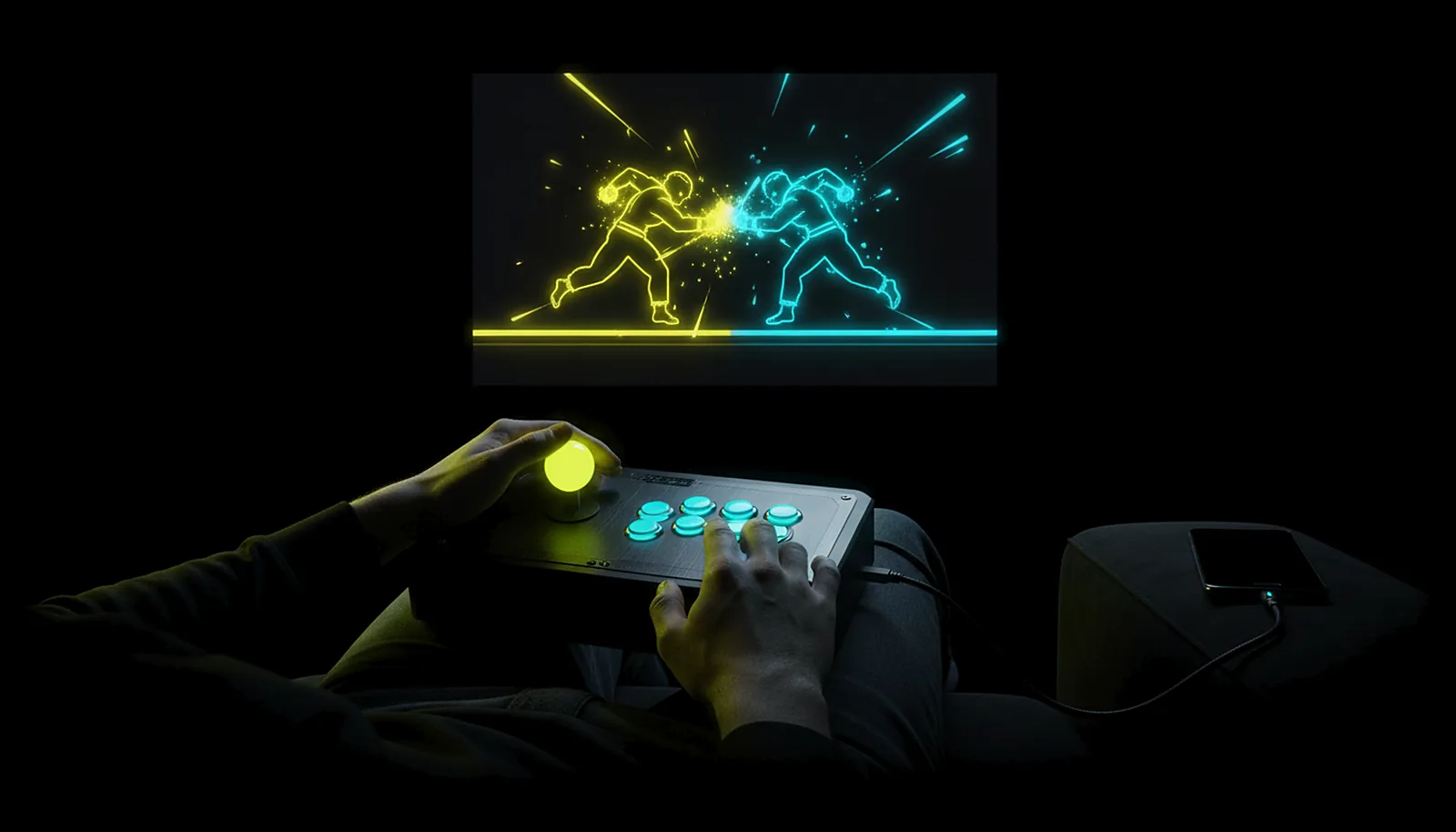
How do I use my arcade stick with my PC from the sofa?
Plug the stick into an Android TV box or phone running ChimpDeck and it reaches the PC as the real USB device: the game sees your stick, identity and button map intact, not an emulated Xbox pad. The fight streams to the TV; the stick works as at the desk.
Updated 2026-09-14
The problem
Fighting games belong on the sofa with friends and a big screen, and the stick belongs in your lap. But the PC is at the desk, and every remote-play app you try turns the stick into a generic controller with a different button order — or the game refuses to see it at all.
A stick that does not map cleanly is not a stick: the one-frame links you practised are gone, and the training mode is now about relearning buttons.
And you cannot see what the stick is sending, so you do not know whether the app, the game or a worn button is to blame.
Why it happens
Arcade sticks are USB devices with their own identity — often a PlayStation or Xbox one, sometimes a generic HID — and games bind buttons to that identity. A client that reads the stick as a gamepad and emulates a different pad on the PC changes the identity and the order, which is exactly what a fighting game notices.
Forwarding the USB device itself keeps the identity: Windows enumerates the same stick with the same driver, so the game binds as it always did.
How to solve it with ChimpDeck
- 01
Plug the stick into the TV box or phone
USB into the Shield, Android TV box or phone running ChimpDeck. USB OTG is the only requirement, no root, no ADB. A bus-powered stick usually runs off a TV box’s full-size port; on most phones you need a powered USB OTG hub, and a charge-only cable shows nothing. Several sticks at once are listed with filters and nicknames.
- 02
Let the PC see the real device
With the USB bridge driver installed by ChimpDeck for Windows, the stick appears on the PC with its own identity and driver — the same as plugging it in at the desk.
- 03
Run the button tester
On the Android side, the button tester shows every button and any undocumented bits; the reaction test gives you a number in milliseconds. A dead button shows up here, not in the game — the same tools cover levers and sticks.
- 04
Check the game sees it
Most games bind straight away because the identity is unchanged. If one does not, this is the checklist.
- 05
Stream to the TV and play
Pair the box with the PC without a PIN, pick the game, and it streams at the TV’s exact resolution. The full TV setup takes a few minutes; every stick, HOTAS or wheel works the same way.
What you get
The stick keeps its identity
The game sees your stick, not a substitute pad, so bindings and button order are unchanged.
Every button, including the odd ones
Extra and undocumented bits arrive as the driver defines them; the tester shows them all.
Link quality you can read
On the PC, the distribution of intervals between controller reports over 60 seconds — median, p99, losses — so a stutter is a number, not a feeling.
No streaming needed to use it
Sit at the monitor with the stick plugged into the phone: the bridge works on its own.
Compared with Moonlight, Steam Link and Parsec
Moonlight with Sunshine or Apollo, Steam Link and Parsec all present the stick to the game as a generic emulated pad, which changes its identity and, often, its button order. ChimpDeck forwards the USB device whole, so the game binds as it does at the desk. Where the alternatives are better: a Bluetooth stick vibrates on them and not on ChimpDeck (rumble travels over USB only), and Steam Link is zero setup if your fighting games live in Steam. ChimpDeck’s host also needs an NVIDIA graphics card for the stream.
See the full comparison table
 [ GET STARTED ]
Get ChimpDeck —free on Android and Windows.
Install both, pair once, play. Every feature is in the free tier.
ANDROID 8+ · WINDOWS 10/11 · NVIDIA GPU · FREE TO PLAY
Related questions
 Controllers
Why doesn’t my game recognise my controller over remote play?
Read the answer Controllers
How do I test if my controller has stick drift?
Read the answer TV & living room
How do I play PC games on my TV from another room?
Read the answer Controllers
Can I use my HOTAS or flight stick on Android TV?
Read the answer
More questions about this
01Does the stick work on Android TV as well as on a phone?
Yes. Any Android 8.0+ device with USB OTG works as the controller server: phone, tablet, Android TV box or Shield.
02Will the game see a PlayStation or an Xbox stick?
Whatever the stick really is: the PC sees the device itself, with its own identity and driver. Nothing is translated.
03How do I know a button is worn out?
Run the button tester on the Android side: a button that never lights up there is a hardware fault, not a streaming problem.
04Does the stick need a powered hub?
On a TV box with a full-size USB port, usually not. On most phones, yes: a powered USB OTG hub, because the phone cannot feed the stick; a charge-only cable will not show the device at all. If the stick has rumble, that loop suffers on bad Wi-Fi, and the app shows the real link speed and controller-to-PC latency so you can tell.
05Does the bridge work with two sticks for two players?
Several pads can be plugged in and forwarded at once with filters and nicknames. Two players from one phone on the same PC session is a scenario under evaluation.