
What’s the best Parsec alternative for gaming on Android?
For playing your own PC on Android, ChimpDeck: a real USB controller instead of an emulated pad, the device’s exact resolution, gaming-specific frame pacing and repair, and a direct path with no account or cloud relay. Parsec still wins on guest sessions, multi-monitor and non-Android clients (coming soon).
Updated 2026-09-14
The problem
Parsec is a fine desktop-first tool, and you have used it to reach your PC. But for gaming on an Android phone or TV the seams show: the controller is a generic emulated pad, the picture is the monitor’s shape, and everything goes through an account and, away from home, Parsec’s relay.
What you want on the sofa is a gaming client: your controller as it is, a full-screen picture with no bars, a 10-foot interface on the TV, and quality that adapts to a game rather than to a spreadsheet.
And you would rather the link between your phone and your PC did not depend on somebody’s cloud.
Why it happens
Parsec was built for low-latency desktop use — remote work, collaboration, a friend playing on your machine — and it does those things well. Gaming on a phone or TV asks for different priorities: the exact resolution of a 20:9 screen, frame pacing matched to the display, repair tuned for a game’s traffic, and a controller the game recognises.
ChimpDeck was built from the controller outward: it started as a USB-over-IP gamepad server and added a streaming client around it. That is why the pad reaches the PC as the real device, and why the picture, pacing and repair are designed for games.
How to solve it with ChimpDeck
- 01
Install ChimpDeck on the phone, tablet or TV box
Android 8.0 or later with a hardware H.264/HEVC decoder. One APK for phones, tablets and Android TV; the interface adapts, and on the TV everything is driven by the remote or a pad.
- 02
Install ChimpDeck for Windows
One installer: host, USB bridge driver signed by Microsoft, virtual display adapter. Windows 10/11 with an NVIDIA graphics card. No account anywhere.
- 03
Pair with a matching number
The PC shows who is calling and a six-digit number; if the phone shows the same one, accept. Reinstall the app and you are still paired.
- 04
Plug in the real controller
Over USB the pad, wheel or stick reaches Windows as the real device with its driver and rumble. If a game ever ignored your pad on Parsec, this is why it will not on ChimpDeck.
- 05
Play at the exact resolution, anywhere
The host learns the device’s size at pairing and serves it on a virtual display, then removes it. Away from home the meeting point opens a direct path — no account, no relay for video.
- 06
Use the desktop bits too
Phone microphone to the PC, clipboard both ways, touch, pen and keyboard: the parts Parsec is good at are here as well.
What you get
Your controller, not a stand-in
The actual USB device on the PC with its driver, four rumble motors and force feedback.
Exact resolution, no bars
The phone’s or TV’s size on a virtual display, learned at pairing, removed after.
Gaming pacing and repair
Display refresh matched to the stream, three pacing modes, adaptive FEC and per-frame integrity.
No account, no cloud in the path
Pairing by identity; video, audio and inputs travel directly between phone and PC.
Compared with Moonlight, Steam Link and Parsec
Where Parsec is ahead today, plainly: guest sessions (a friend plays on your PC from their home), more than one monitor streamed at once, clients on iOS, macOS and Linux, the clipboard on all of them, and rumble on a Bluetooth pad (with a Bluetooth pad, today Parsec rumbles and ChimpDeck does not; over USB ChimpDeck gives more than anyone). All of that is coming soon on ChimpDeck; if one of them decides it for you today, Parsec is the right tool. Where ChimpDeck wins for gaming on Android: the real USB controller, the exact resolution with a clean return, a 10-foot TV interface, live quality changes with the PC’s telemetry, a session that survives a network drop, and no account or relay on the normal path. Today’s truth on the host side: an NVIDIA card for encoding (AMD and Intel coming soon), Windows 10/11 (a Linux host coming soon), SDR or HDR10. Against Moonlight + Sunshine and cloud gaming the comparison is different again.
See the full comparison table
 [ GET STARTED ]
Get ChimpDeck —free on Android and Windows.
Install both, pair once, play. Every feature is in the free tier.
ANDROID 8+ · WINDOWS 10/11 · NVIDIA GPU · FREE TO PLAY
Related questions
 Alternatives
Is there an easier alternative to Sunshine and Moonlight?
Read the answer Away from home
How do I play my PC games away from home without port forwarding?
Read the answer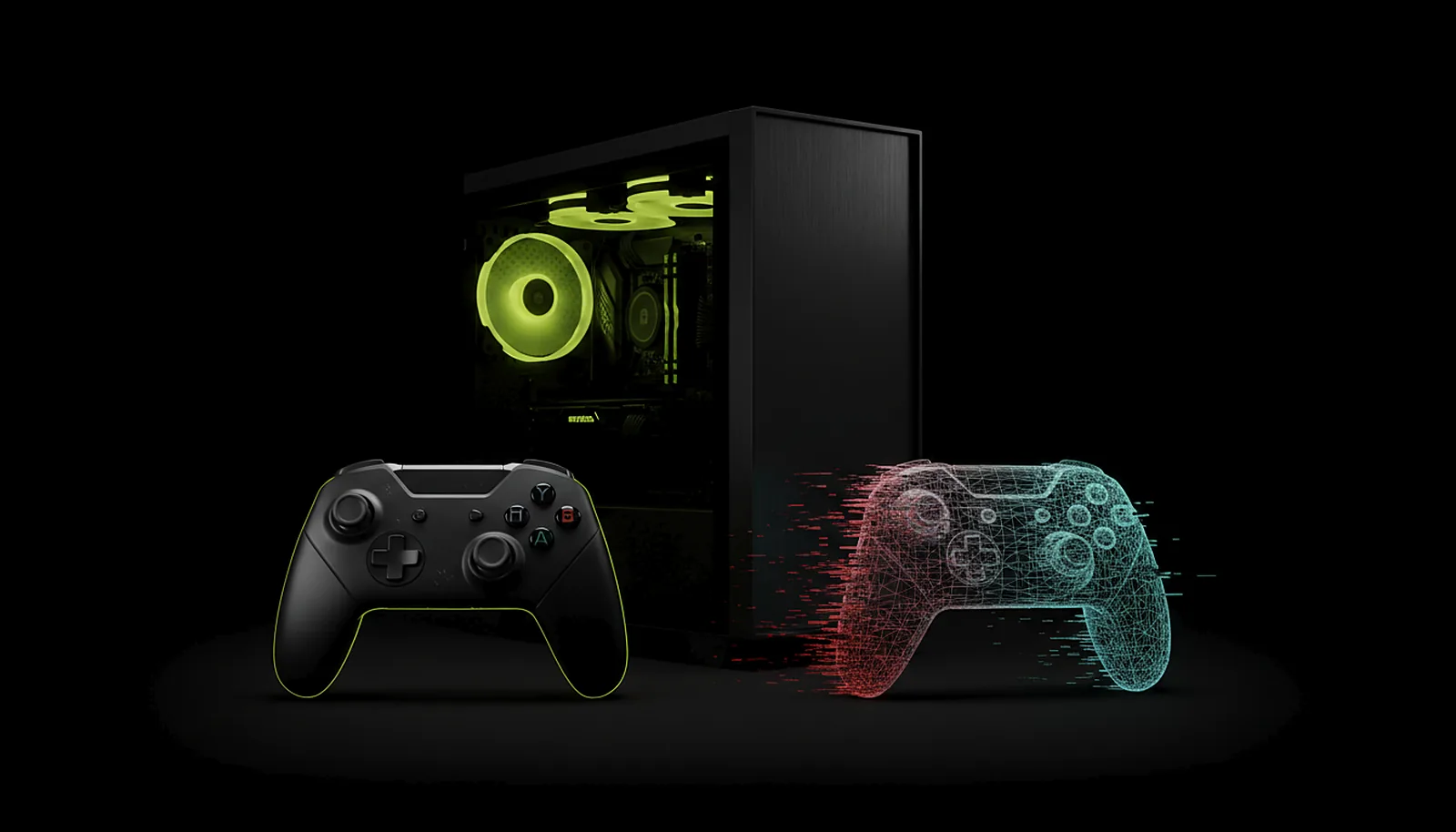 Controllers
Why doesn’t my game recognise my controller over remote play?
Read the answer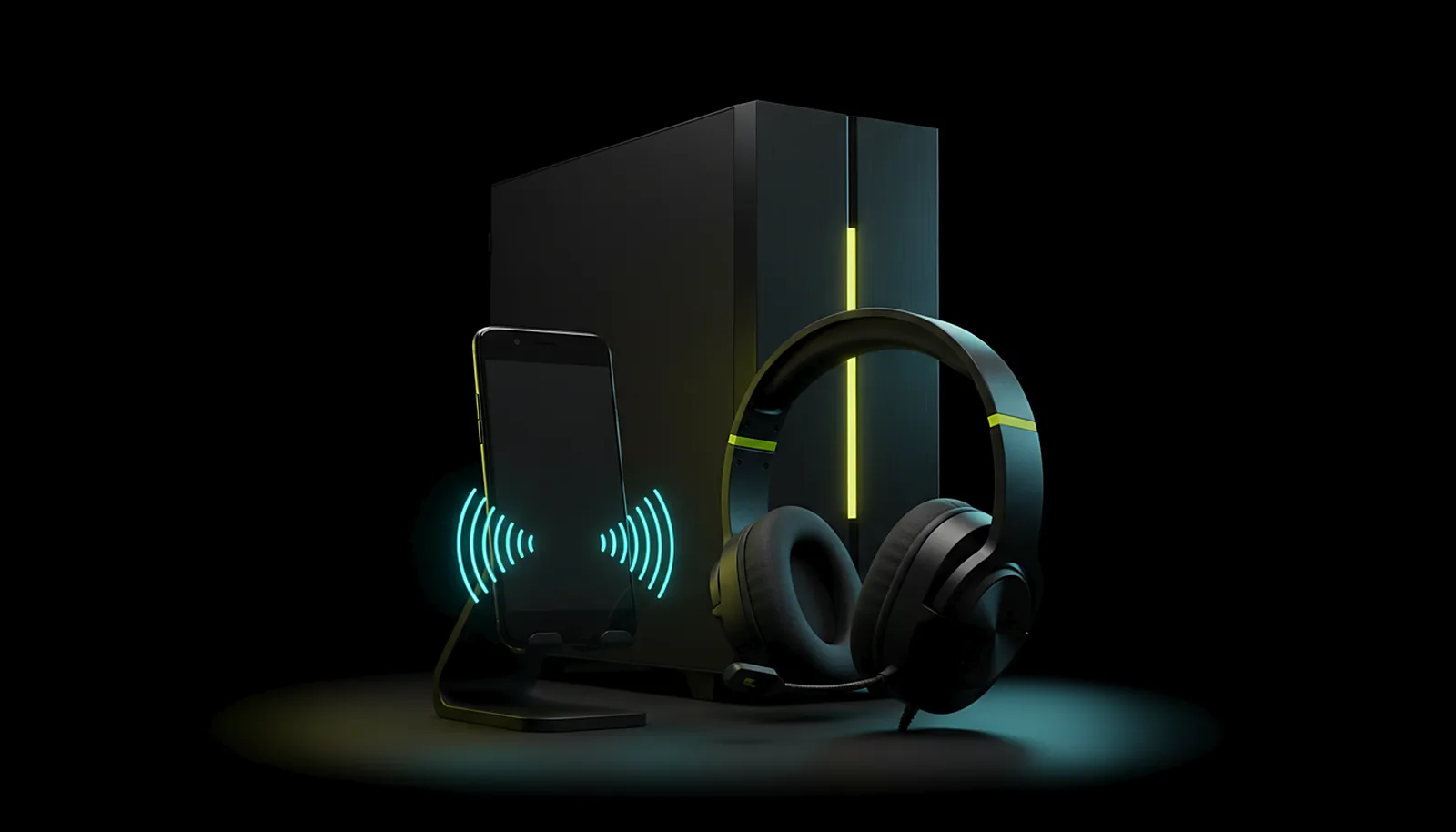 Setup & privacy
How do I use my phone’s microphone for voice chat on the PC?
Read the answer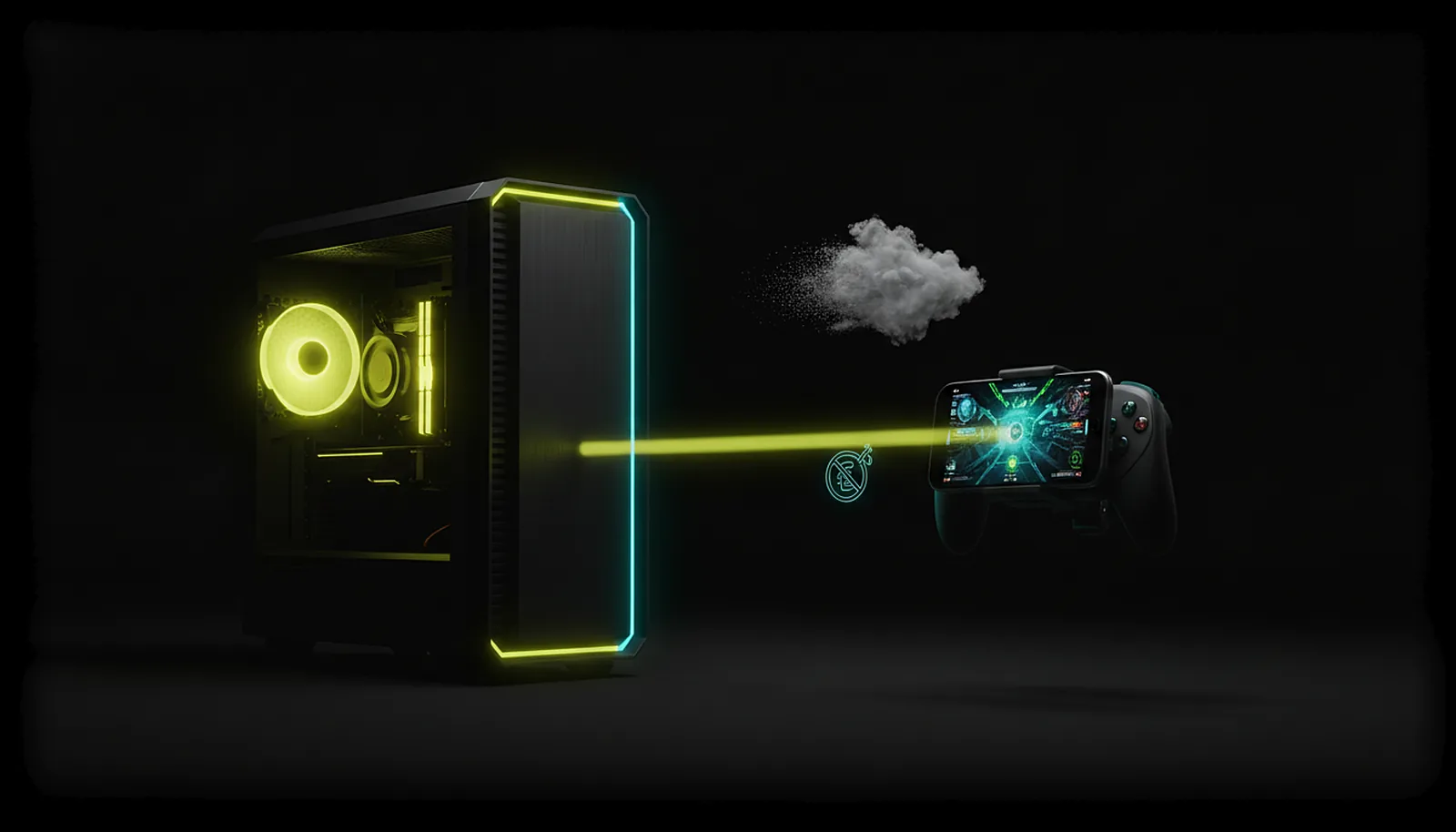 Alternatives
Can I play my own PC instead of paying for cloud gaming?
Read the answer
More questions about this
01Can a friend play on my PC through ChimpDeck like on Parsec?
Not yet — guest sessions are coming soon. Today only devices you have paired get in; if a friend playing on your PC from their home is what you need now, Parsec does that.
02Does ChimpDeck need an account?
No account is needed to use ChimpDeck at home or away. The Non Stop Pass is bought on the website and activated on the PC.
03Does my video go through ChimpDeck’s servers?
No. On the normal path video, audio and controls travel directly between the phone and the PC; the meeting point only introduces them away from home and relays a few kilobytes of control.
04Is it free?
Free with every feature unlocked and the Play Cooldown: 2 hours of real play, then a 4-hour cooldown (the clock only runs while you use the controller). The Non Stop Pass (€4.99 + VAT for 30 days or €39.99 + VAT for life) switches the cooldown off, nothing more. Parsec has a free personal tier too.